

1.Introduction
1.1 Purpose of the Document
This document is a User Guide for Freyr iREADY, a cloud-based ingredient database platform, which enables manufacturers and brand owners to understand the Regulatory requirements for food ingredients and supplements across the global markets. This database also provides information on the Health Claims to be used in the labeling and Food Contact materials.
1.2 Executive Summary
The food products industry is changing rapidly across the globe, rising with changing demographics, increasing demand for branded and convenience food products, growing consumer focus towards organic food and clean label food products. Organic food products are gaining traction among the consumers, owing to environment friendly cultivation of organic food without the use of pesticides.
Processed food products include range of minimally processed food products to complex food preparations that combine a wide array of food processing ingredients. Food processing ingredients covers ingredient such as, spices, enzymes, emulsifiers, flavors, stabilizers, texturizers, preservatives and others. Changing lifestyle, increasing working women’s and increasing consumption of ready to eat food products in urban areas is pushing the market for food processing products, ultimately the market for food processing ingredients.
There are thousands of ingredients used to make foods. The Food and Drug Administration (FDA) maintains a list of over 3000 ingredients in its data base “Everything Added to Food in the United States”, many of which we use at home every day (e.g., sugar, baking soda, salt, vanilla, yeast, spices and colors). All food additives are carefully regulated by federal authorities and various international organizations to ensure that foods are safe to eat and are accurately labeled.
Today, food and color additives are more strictly studied, regulated and monitored than at any other time in history. FDA has the primary legal responsibility for determining their safe use. To market a new food or color additive (or before using an additive already approved for one use in another manner not yet approved), a manufacturer or other sponsor must first petition FDA for its approval.
Freyr iREADY is an ingredient database platform which enables manufacturers and brand owners to understand the 1) the composition compliance and standards and specifications of the substance, 2) the amount that would typically be consumed, 3) Guidance on immediate and long-term health effects, and 4) various safety factors across the global markets. The software supports proactive Regulatory and safety compliance observance and management of product formulae in different markets. Freyr iREADY can be used for new product development as well as lifecycle management of existing products to ensure continued compliance.
1.3 Key Features of Freyr iREADY:
Ingredient Regulations:
Within Freyr iREADY, we maintain regulations/legislations and industry standards for more than 24000 Global food ingredients and dietary supplements by Substance Name, Function, INS/E-Number, Country, CAS Number and other names across more than 70 regulated markets.
Some of the key highlights of this feature include:
- Freyr iREADY takes into consideration the distinct names used for an ingredient in different regions. For e.g.,Beta-Carotene is referred as “Food Orange 5” in different markets, hence, ensuring compliant labeling for the same.
- Freyr iREADY includes all identified technical functions of each ingredient, hence, allowing the user to select ingredients with ease while building product formulae.
- The interface of Freyr iREADY is modelled for users to search ingredients using multiple parameters, like Ingredient name, E-Number, INS Number, CAS No., Functions, and other names in a single search bar.
- Freyr iREADY can help you in managing Regulatory and Safety information in a single extensive repository rather than storing and maintaining ingredient data in spreadsheets, excel, SharePoint etc. The tool also helps in reducing the time spent for compliance check by simultaneously reviewing regulations of ingredients across the global markets in a single window.
To understand more on how to check ingredient regulations, refer to Section 10.
Formulae Compliance:
Freyr iREADY enables the users to create innovative formulae based on ingredient functions.
The user can select multiple ingredients to create formulae, add concentrations and functions, view the acceptability of the ingredient combination across the global markets. The tool includes all identified functions of each ingredient, hence, allows the user to select functions with ease while building product formulae.
Freyr iREADY currently supports formulation assessment taking various parameters into consideration, such as:
- Permissibility of the ingredient in each market. For e.g., Positive or prohibited list of ingredients in a market.
Global comparative map view across markets for overall compliance of the formulae based on the permissibility of ingredients
Some of the key highlights of this feature include:
- The created formulae are proprietary to the individual user/creator of the formulae
- Multiple formulations, and SKU’s can be created and saved for future use
- Ability to search for all ingredients in the formulae by using a list of CAS No, INS/E-Numbers.
To understand more on how to check formulation compliance regulations, refer to Section 12.
Recent Updates:
Regulatory developments and changes are regularly monitored by Freyr’s Regulatory intelligence team and the Freyr iREADY platform is updated every fortnight, and the same is conveyed to users with proactive alerts (Flags) enabling them to make informed decisions.
Some of the Key Highlights of this feature include:
- Ability to search recent updates based on a date range
- Ability to view your impacted formulae saved in iREADY based on the recent updates on ingredients
1.4 Intended Audience
This document is intended for professionals who are willing to understand the Regulatory requirements of ingredients across global markets and evaluate formulation compliance against regulations.
2. Terms and Definitions used in Freyr iREADY
Regulatory Status
Below are the definitions for Regulatory status of ingredients in various markets, as used in the Freyr iREADY tool:
- Prohibited
Ingredient is banned / Use of the ingredient is prohibited.
Not Recommended
Scientific panels / scientific Literature questions the safety of ingredients in food application.
Approved with Restrictions
Legislative framework of the country/region allow Ingredient(s) to be used in selected set of Food category subjected to restrictions in terms of ingredient usage limit and food category.
Approved
Ingredient allowed in for the selected combination the category and subcategory at a GMP/ Quantum satis.
Listed
Ingredient(s) is listed in ‘Inventory of Existing regulation, and there are no defined Usage limits or application instructions.
No Regulatory Status
No listing of ingredient in inventory of selected food regulation
OR
Contact Freyr iREADY admin for details/Queries on No regulatory status/Raise a ticket.
Regulated
Standard specifications of the ingredient as per the market.
Standard
Codex Alimantarius standards are followed by major regulated markets. And these standards can also be used as a guideline for semi-regulated and non-regulated markets.
Allowed
The ingredient may be allowed as products containing the ingredient are already present in the market.
Rejected
Novel Food or New ingredient application: Rejected OR rejected due to insufficient scientific evidence.
Flags
If there are any significant updates with respect to the ingredient, a colored Flag will appear next to the ingredient in the ingredient’s regulation screen.
Blue Flag  Any recent inclusions in the approved list or any relaxations in regulations with respect to ingredient will be highlighted with a blue flag.
Red Flag  Any recent prohibitions or restrictions introduced with respect to any ingredient will be highlighted with a red flag.
Formulae Creation Options
Sample Formula: Users will be allowed to create up to 5 Sample Formulae and perform quick compliance check based on permissibility of ingredients for intended market or view global landscape of created sample formula.
Formula: Users may save created ‘sample formula’ as ‘Formula’ to perform timely compliance check or use as a SKU/ final Formula repository of all the products in the organization. There is no limit on the number of Formulae a user can save.
Definition of Function
Functions: Freyr iREADY has listed all the standard functions recommended by the CODEX database.
Standard Function: Functions which are governed by the regulation.
3.Acronyms
| S. No | Term | Definitions, Abbreviations & Acronyms |
| 1. | FP | Finished Products |
| 2. | E Number /INS Number | International Numbering System for Food Additives |
| 3. | CAS No | Chemical Abstract Service Number |
4.References
Freyr iREADY was referred for preparing this document.
5. Freyr iREADY– Introduction and Installation
Since Freyr iREADY is a web application, it is deployed from the development server to the cloud server on which the application will be run. The application can be hosted only on MS Windows.
The application server software requirements are as follows:
- Windows Server 2016 or Higher
- SQL Server 2012 or Higher
- TFS 2015 or above
- Microsoft.Net Framework Version 4.5.2 or above
- Chrome 70.0 or above
- IIS 10.0 or above
- Languages: AngularJS 1.4.0, C# 4.0
6. System Architecture
The system will be implemented on 3-tier architecture. The technologies used to build this system are .Net Framework 4.5, SQL Server 2012. 3-Tier architecture generally contains UI or Presentation Layer, Business Access Layer (BAL) or Business Logic Layer and Data Access Layer (DAL).
Database built in SQL Server 2012 and it should be also support for SQL Server 2014.
Presentation Layer:
Presentation layer deals with the user interface of the application. This layer will be implemented using MVC and AngularJS. All pages may contain HTML, JavaScript, jQuery, and AngularJS. This will have interactive interfaces for managing Regulatory submissions.
Business Logic Layer:
This layer will be implemented with the help of Entity Relationship model. Entire business logic used in the application will be implemented in this layer.
Data Access Layer:
DAL contains methods that help business layer to connect the data and perform required operations (CRUD).
7.Getting Started
Being a Cloud-based platform, the only prerequisite to access Freyr iREADY would be internet connectivity and browser.
Freyr iREADY application can be accessed from any computer system with a relatively current version of a web browser (Chrome recommended). It can be accessed via the Internet, or an organizational Intranet, depending on the access policies of the organization.
The first page displayed upon launching the URL link is the Login window of the application.
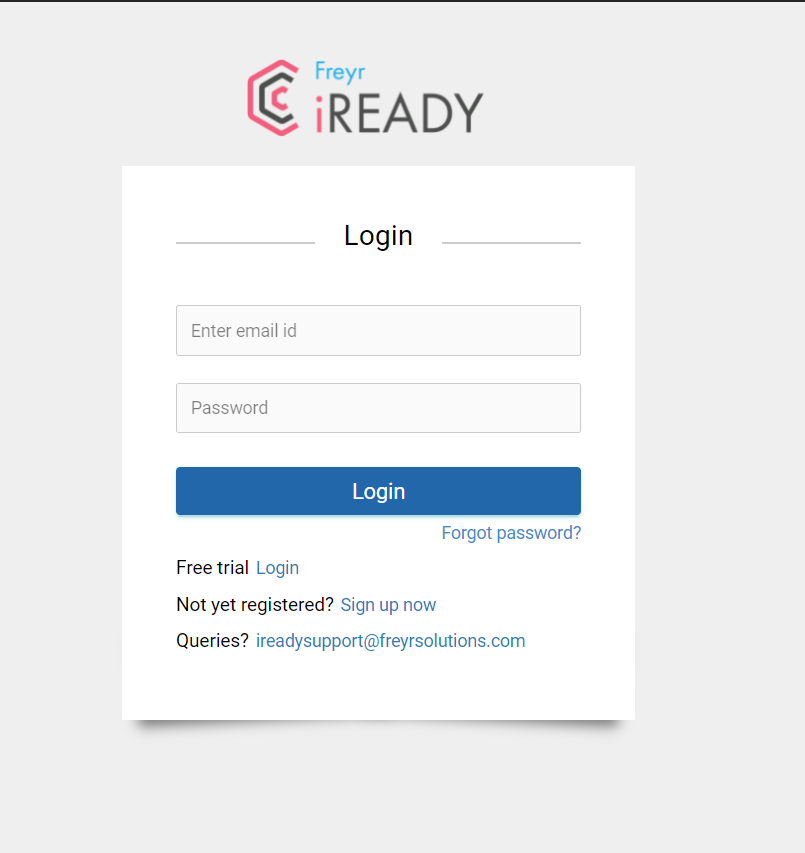
Image 1: Login window
1. Enter your Username/Email and Password.
2. Click the  button or hit Enter. You will be directed to the Home page.
3. If the User ID and/or Password is/are incorrect, a message stating
4. If the user account is locked a message stating “Your account is locked please contact admin” will be displayed.
7.1 Forgot Password
In case you forget your password, click the  button. The Forgot Password window will pop up. Enter your UserName to retrieve the password and click the
  button.
Note: Click the  button to discard the action.
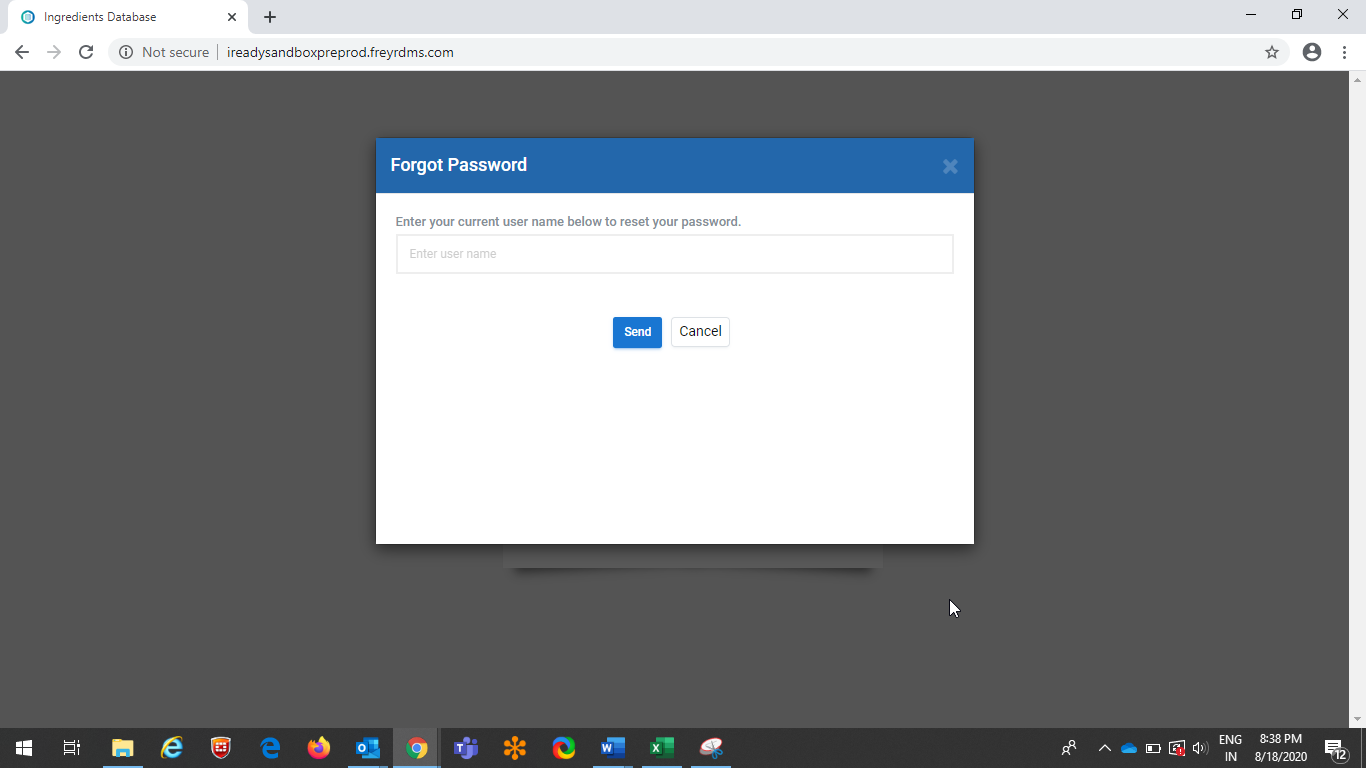
Image 2: Forgot Password
Link to Reset Password will be sent to your email id on clicking  option provided in the email ID. Then, you will be re-directed to Reset Password screen (Refer Image3). Once you reset the password, the screen will display a success message “Your Password has been reset successfully”
(Refer to Image 4). On clicking Click Here option provided below the success message you will be
directed to the Login Page (Refer Image 5).
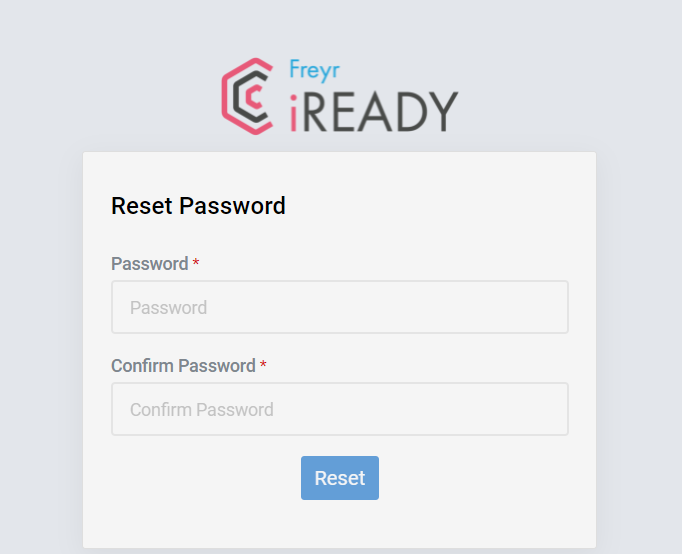
Image 3: Reset password
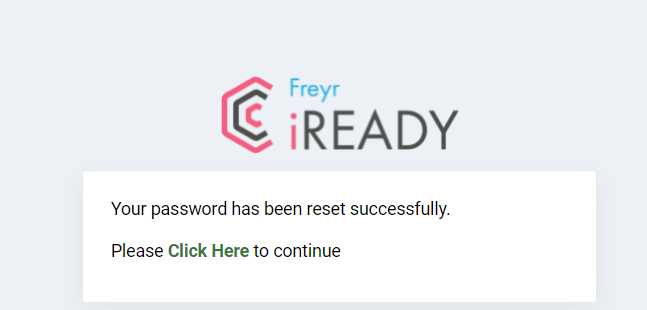
Image 4: System displays Success message once the password is reset
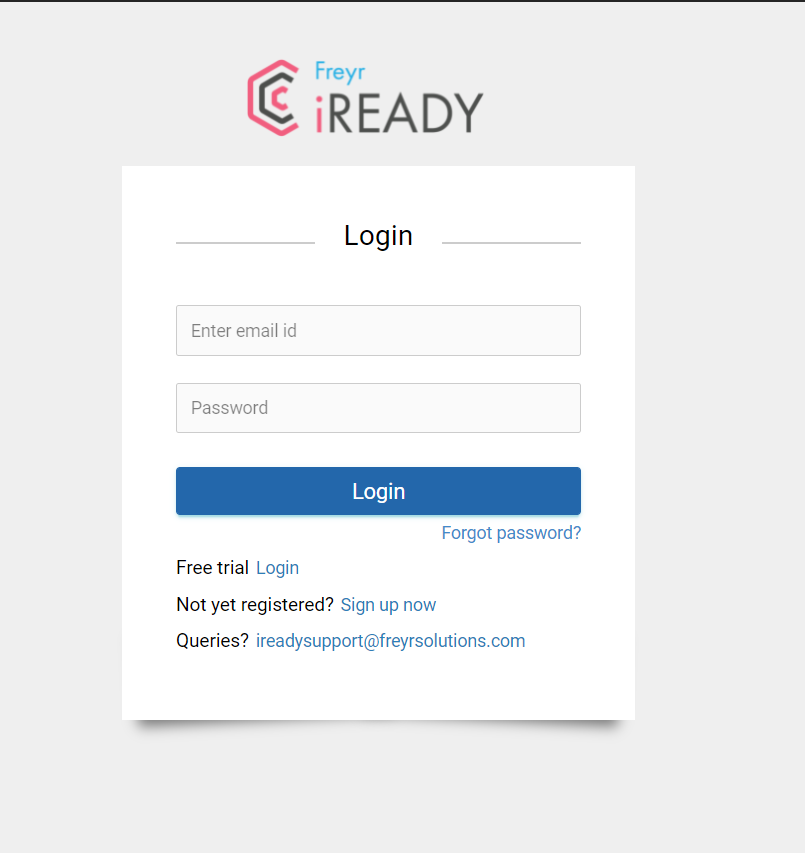
Image 5: User directed to Login Screen once the password is reset
8. Home
Home page will display the Dashboard with a world map. This is the landing page of Freyr iREADY.
The modules of the application Dashboard, Regulations (dropdown with “Ingredient’s & FP Regulations”, “Food Contact Materials” modules), Claims, Recent Updates, and Formulae Compliance, will be displayed on the top of the screen
The user should refer the “iReady Database: Quick facts” information before browsing all information in iREADY
(Refer Image 6)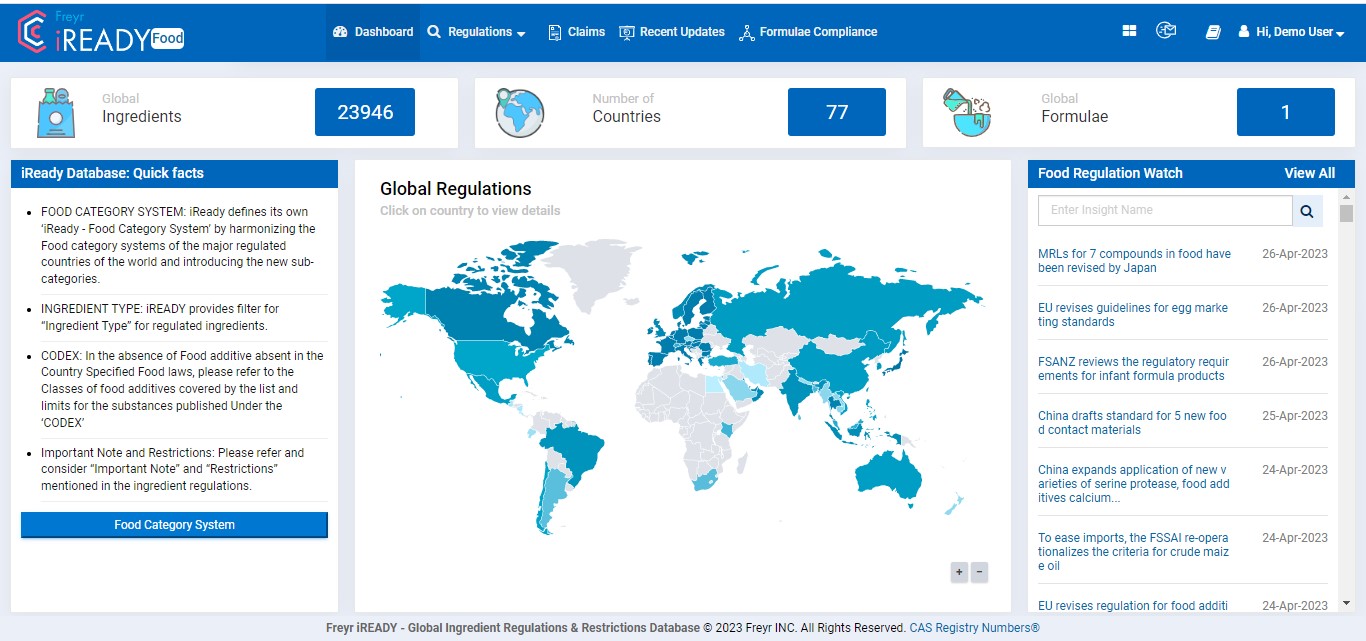
Image 6: Home Page displaying Dashboard and the top of the screen displays the list of modules
8.1 Raise a Ticket
On the right-hand top corner of the Home Page, there is an icon  which allow the users to raise tickets.
Upon clicking the Raise a Ticket Icon, a popup will open for the user to create a ticket (Refer to Image 7) related to any issues encountered in the application. User can select the Priority of the ticket from the drop down menu (Refer Image 7) and on clicking Submit, a ticket would be created and sent to the IT team.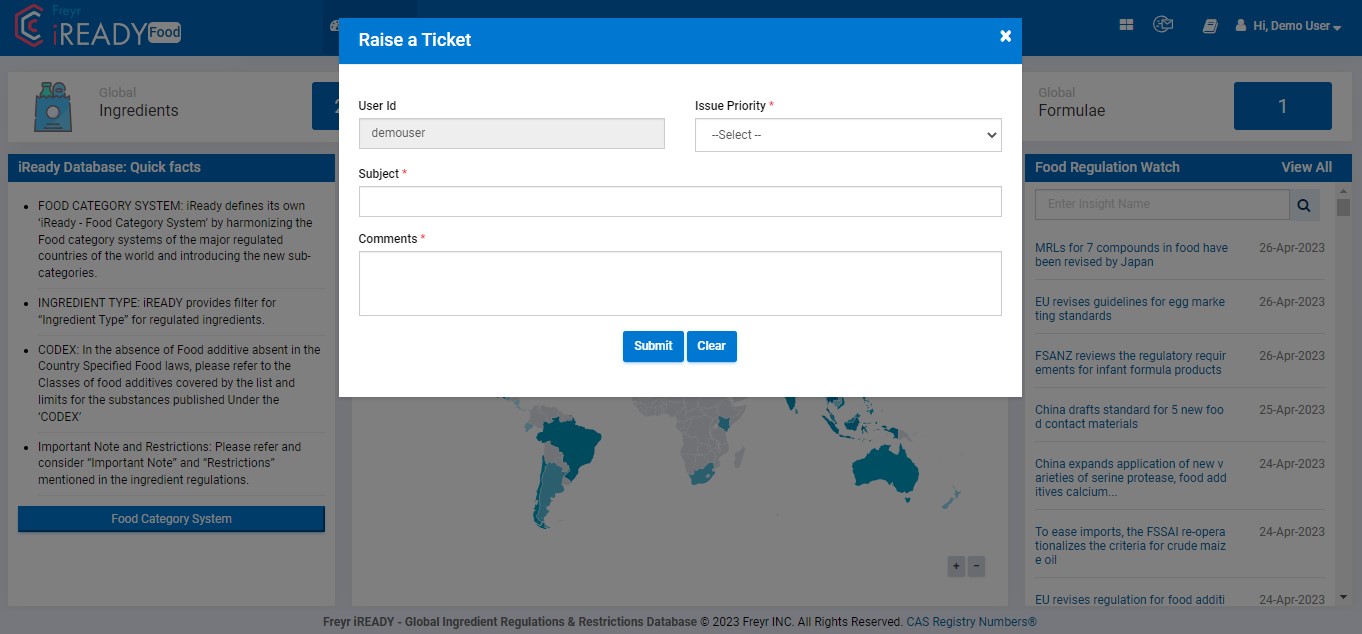
Image 7: On selecting Raise a Ticket Icon, a window will be opened to create a ticket
8.2 My Profile
My Profile is available as a drop-down list which appears on clicking the username (Refer to Image 8). My Profile page allows the users to manage their own user account. This page displays Edit, Change Password and Cancel options. (Refer to Image 9)
On clicking Edit button, the tool displays the User Details page. Here, the user can modify or add First Name, Last Name and Phone Number, once all the fields are filled and the user can click on Update to save the given information. (Refer to Image 10)
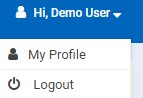
Image 8: My Profile option in the drop-down list on selecting username
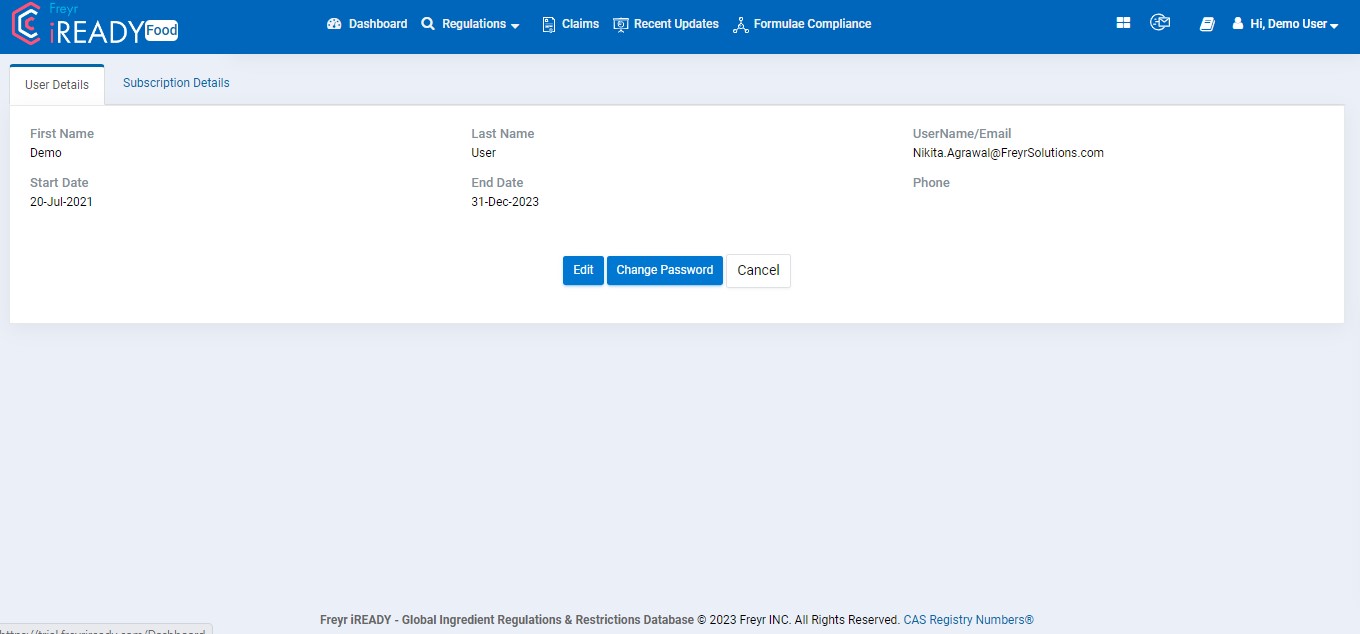
Image 9: Edit, Change Password and Cancel options in My Profile Page
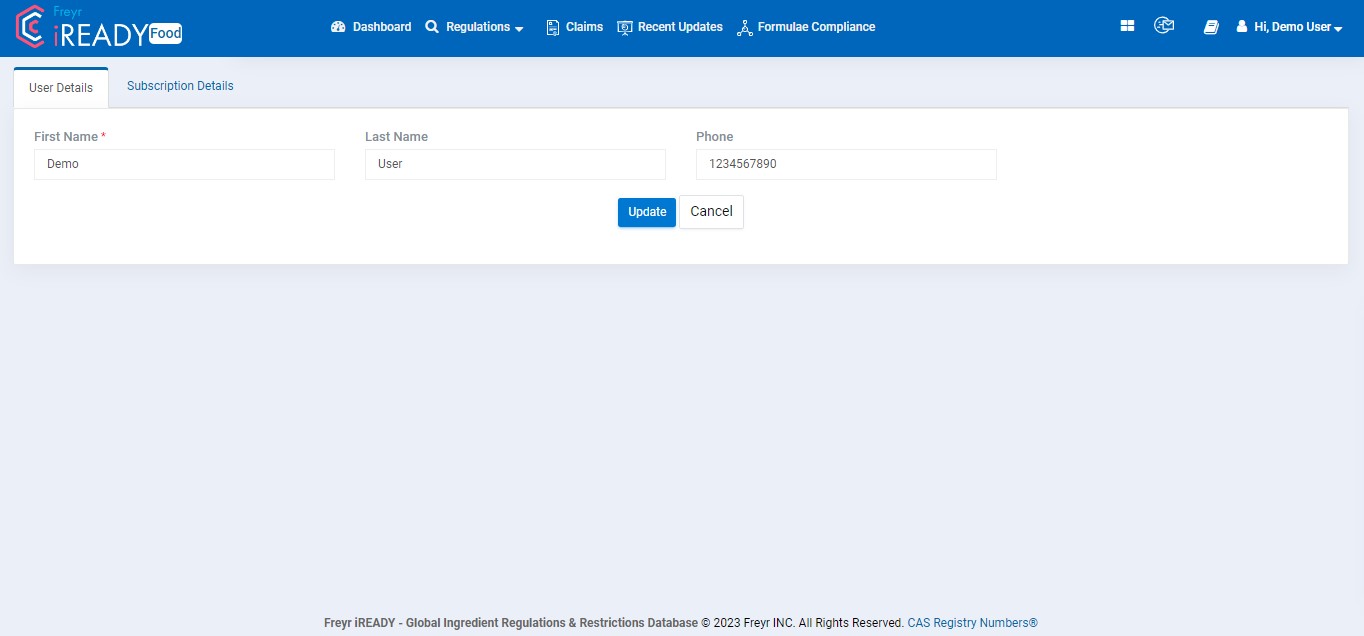
Image 10: User Details Screen for the User to Modify or Add Details
On selecting Change Password button, the tool will open a Change Password window for the user to change the Current Password. Once the password is provided and the user selects Save button the new password will be saved. (Refer Image 11)
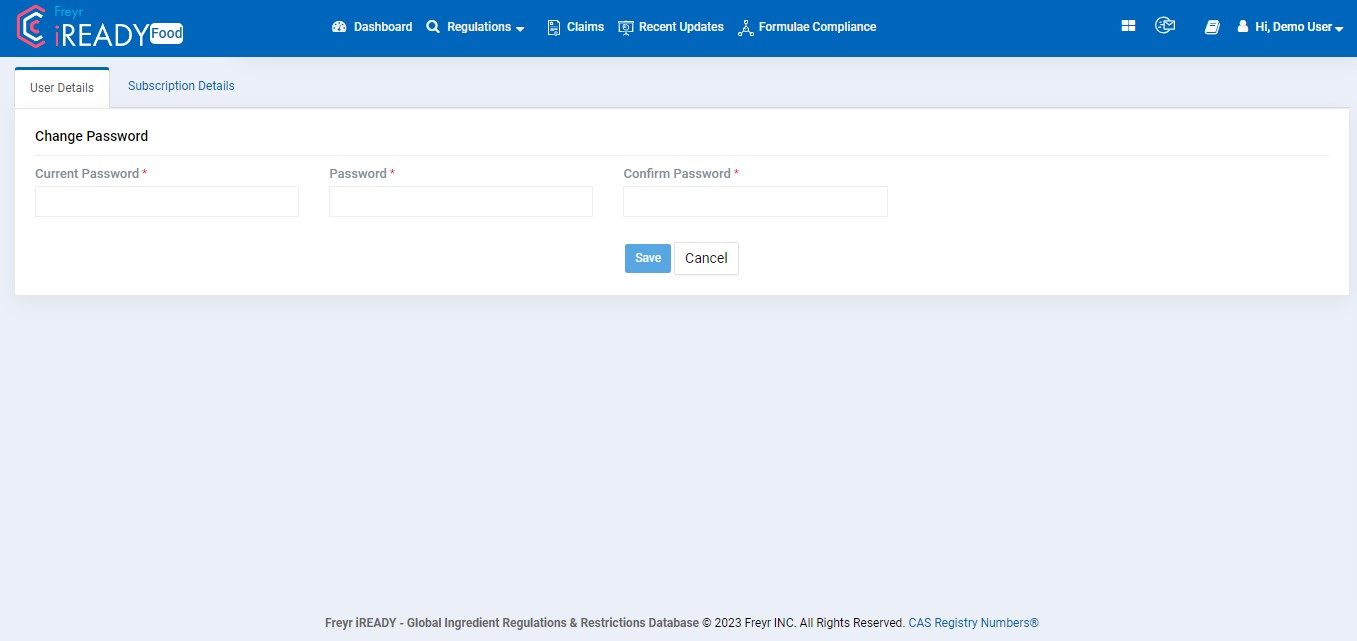
Image 11: Change Password Screen
8.3 Logout
Logout is available as drop-down option on clicking the username (Refer Image 12). On selecting it, the user will be logged out from the application and the Login screen will be displayed again. (Refer to Image 13)
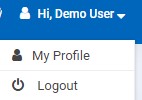
Image 12: Logout option under username
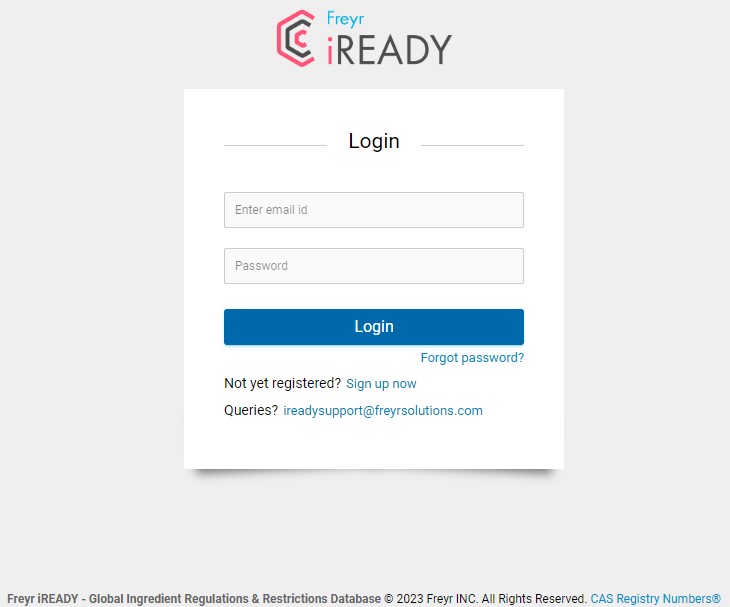
Image 13: On selecting Logout option, the user will be logged out and re-directed to the Login Screen
9. Dashboard
The Dashboard displays a World Map on the center of the screen. Above the world map, there are 3 tiles named as Global Formulae, Global Ingredients and Number of Countries. On the right-hand corner of the world map, the tool displays Food Regulation Watch (Refer to Image 14).
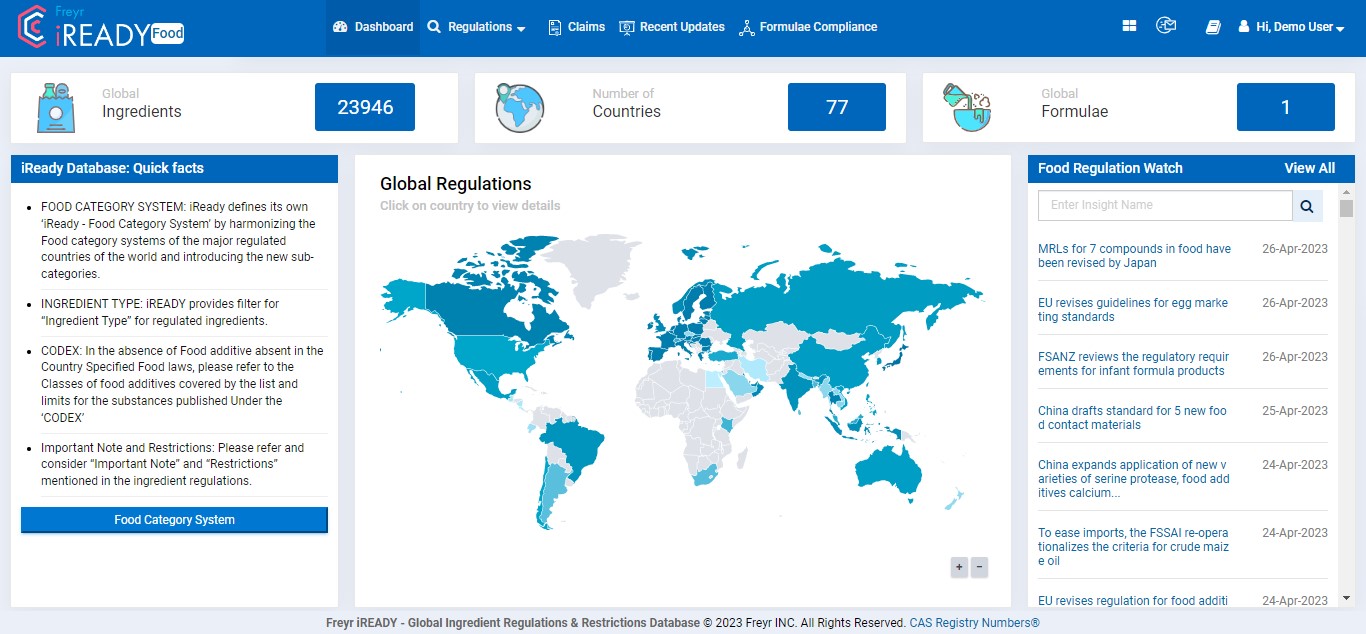
Image 14: Dashboard displaying Global Regulations Map, 3 Tiles on the top, and Food Regulation Watch on right side
9.1 World Map
The World Map highlights all the countries for which the data is available in Freyr iREADY, and on hovering the mouse over a country, it displays the number of ingredient regulations available for that particular country. (Refer to Image 15). The world map also has “Zoom In and Zoom Out” “+ and –“ icons at the bottom right corner for a closer view of the countries and count of available ingredients.
Zoom function also works with scroll key of the mouse and on using touch screen devices, map can be zoomed in and out by touch pinch.
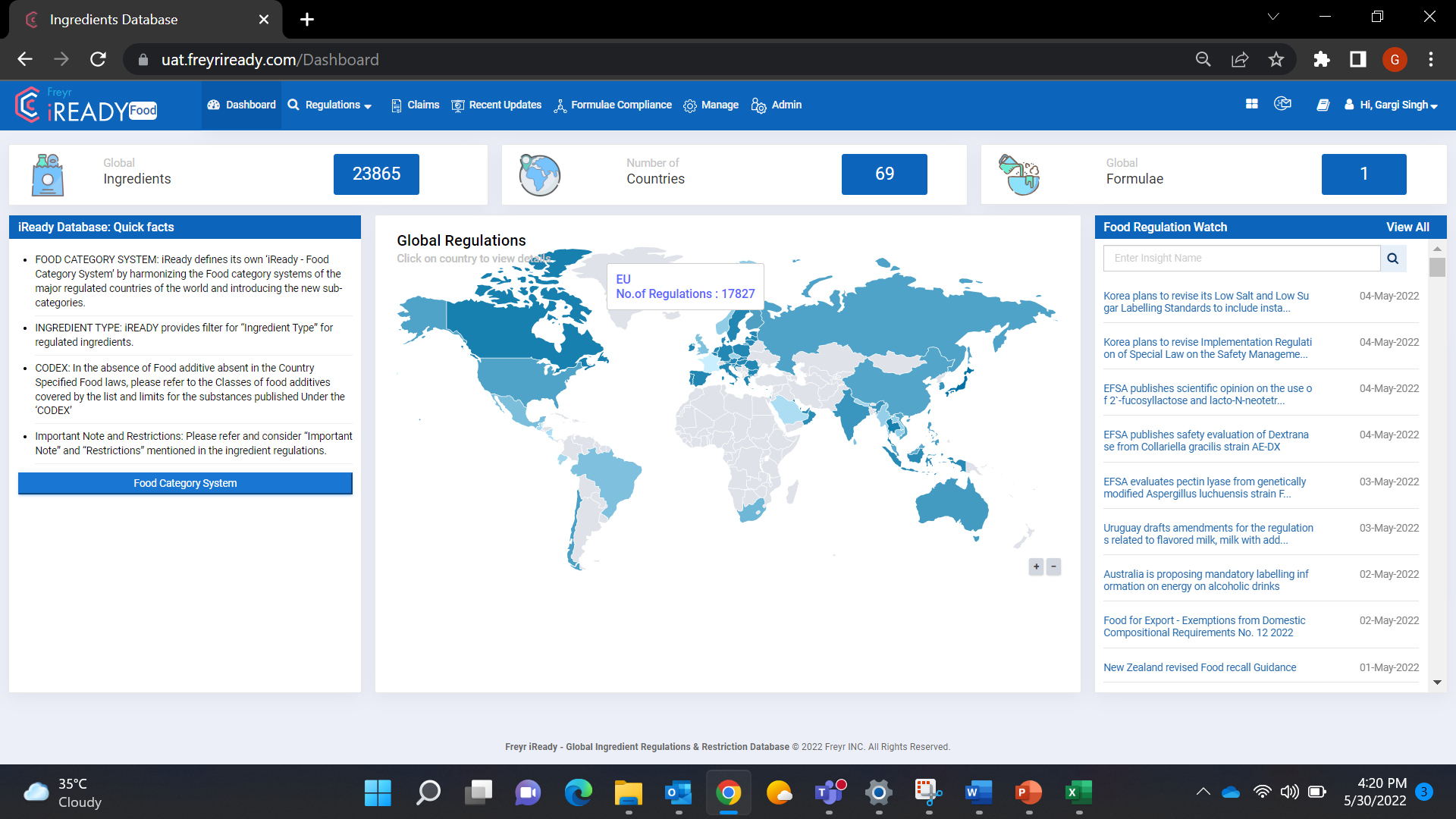
Image 15: World Map displays number of Ingredient regulations for a country on hovering the mouse and Zoom in and Zoom Out options
9.2 Global Formulae
Global Formulae displays the Number of Formulae created by the user.
On clicking the Count box (Refer to Image 16) of Global Formulae tile, the tool will navigate the user to Formula Compliance module with the list of formulae created by the user, and actionable options against each formula. Available options are View, Edit, Clone, Move to Sample Formulae, Inactivate Formula. (Refer Image 17)
Image 16: Clicking the Count Box of Global Formulae Tile on Dashboard
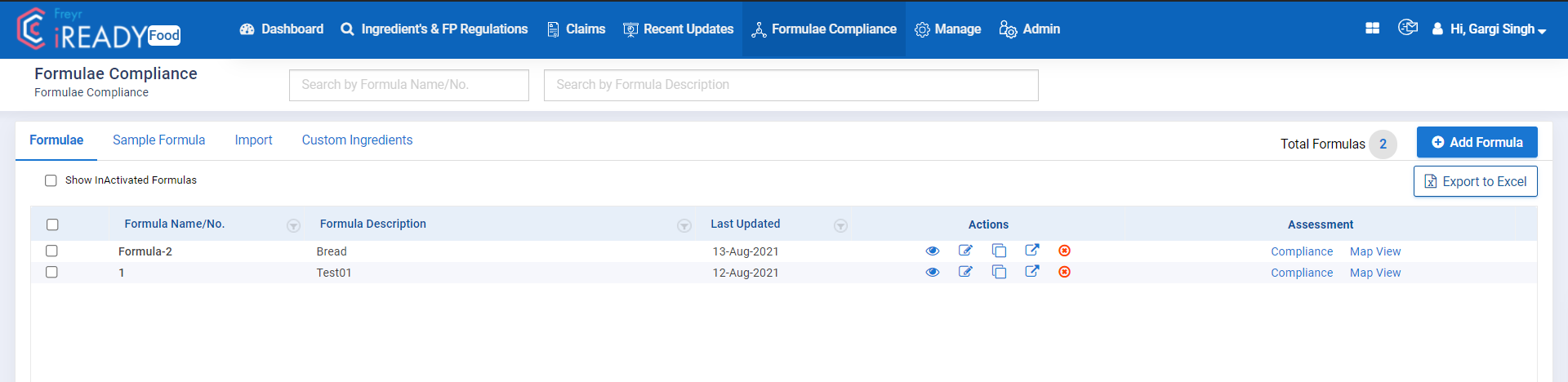 Image 17: User Navigated to Formulae Compliance Module with List of Actions for each formula
9.3 Global Ingredients
Global Ingredients displays the Number of Ingredients available in the tool.
On clicking the Count Box (Refer Image 18) of Global Ingredient tile, the tool will navigate the user to the Ingredient’s & FP Regulations module to view its details. The details are displayed in a tabular view with column headings as Flag, Ingredient Name, INS/E-Number, CAS No, Functions, Markets/Countries, Other Names (Refer Image 19) Refer to section 10 for further details.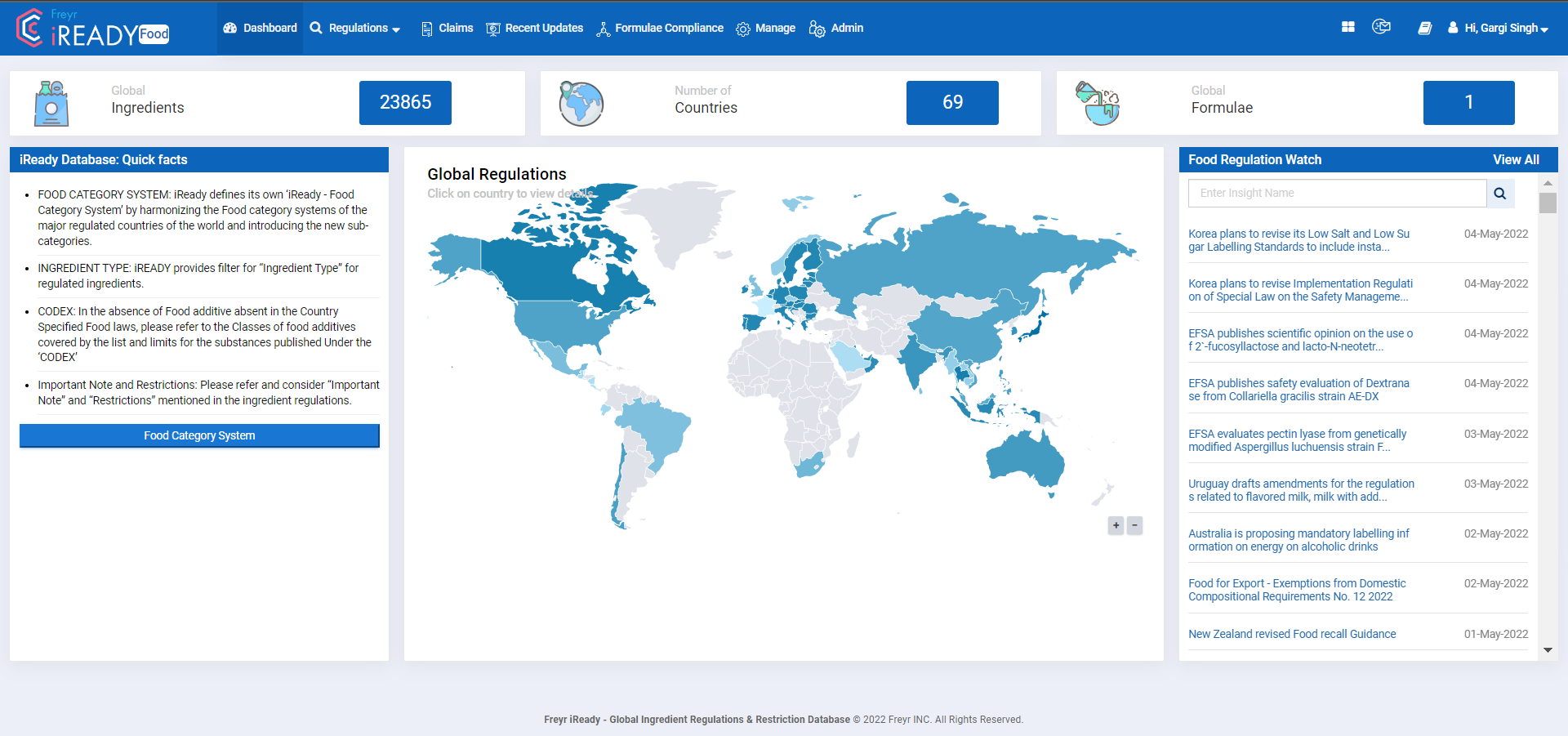
Image 18: Clicking the Count Box of Global Ingredient Tile on Dashboard
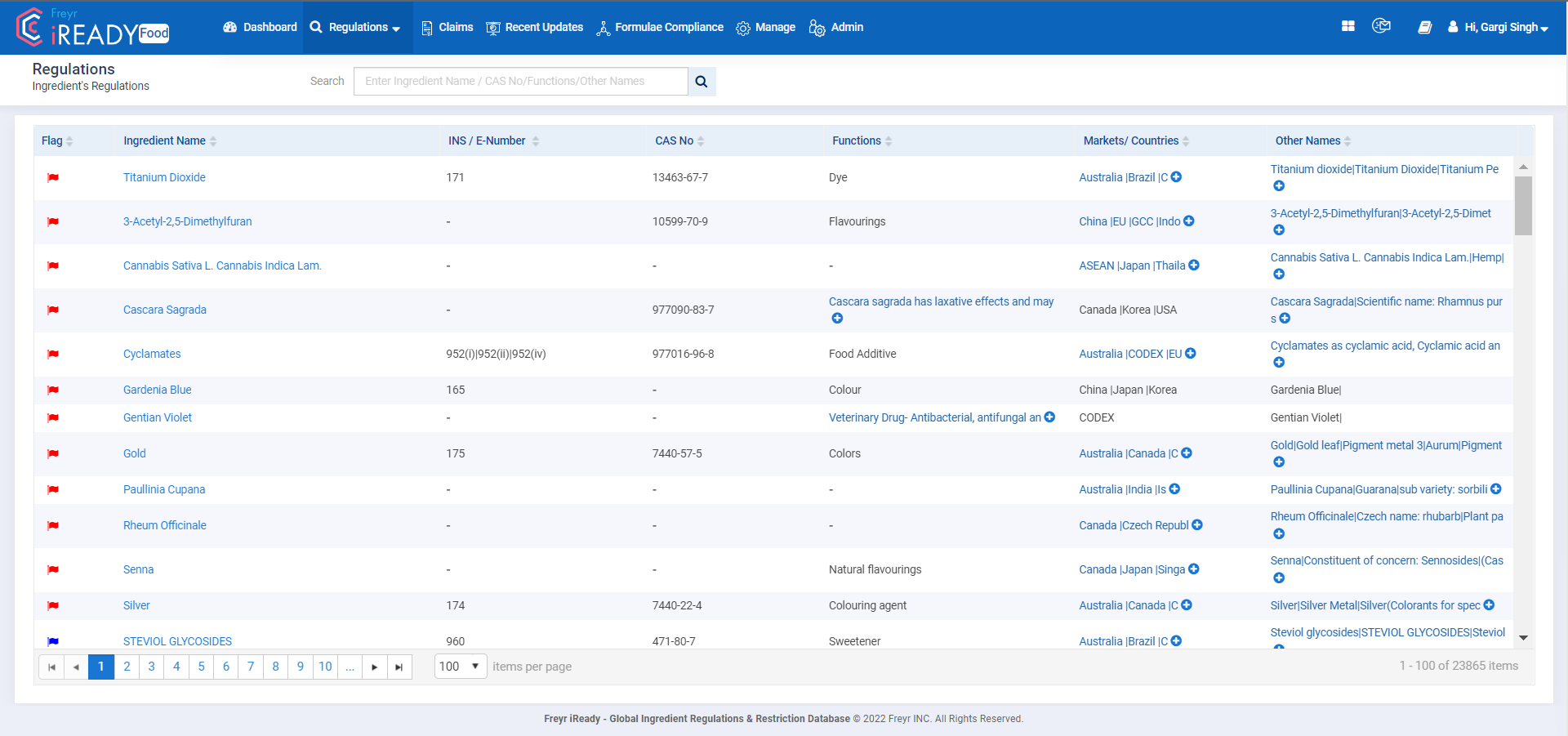
Image 19: List of Ingredients in Tabular view
9.4 Number of Countries
Number of Countries display the number of countries for which ingredient data is available in the Freyr iREADY application (Refer to Image 20).

Image 20: No. of Countries displaying the count of countries for which ingredient data is available
9.5 Food Regulation Watch
Food Regulation Watch is displayed on the right side of the world map which displays the latest ingredient regulation updates. “On Clicking “View all” tool navigates the user to a new window displaying all Regulatory updates”. (Refer to Image 21).
On selecting any of the updates from the list, the tool will navigate the user to new window with the detailed view of the update (Refer to Image 22).
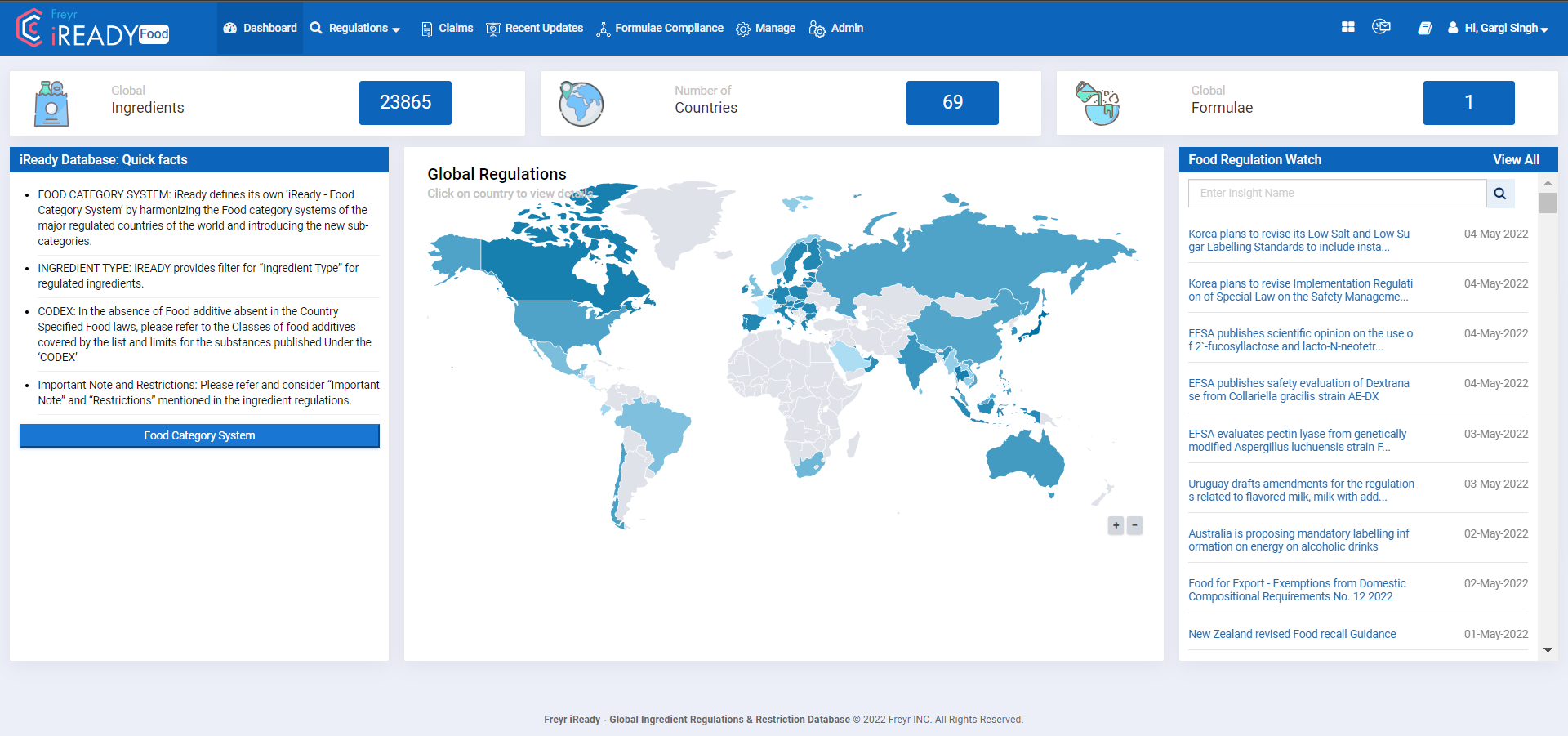
Image 21: Latest Ingredient Updates on right-hand side of the world map
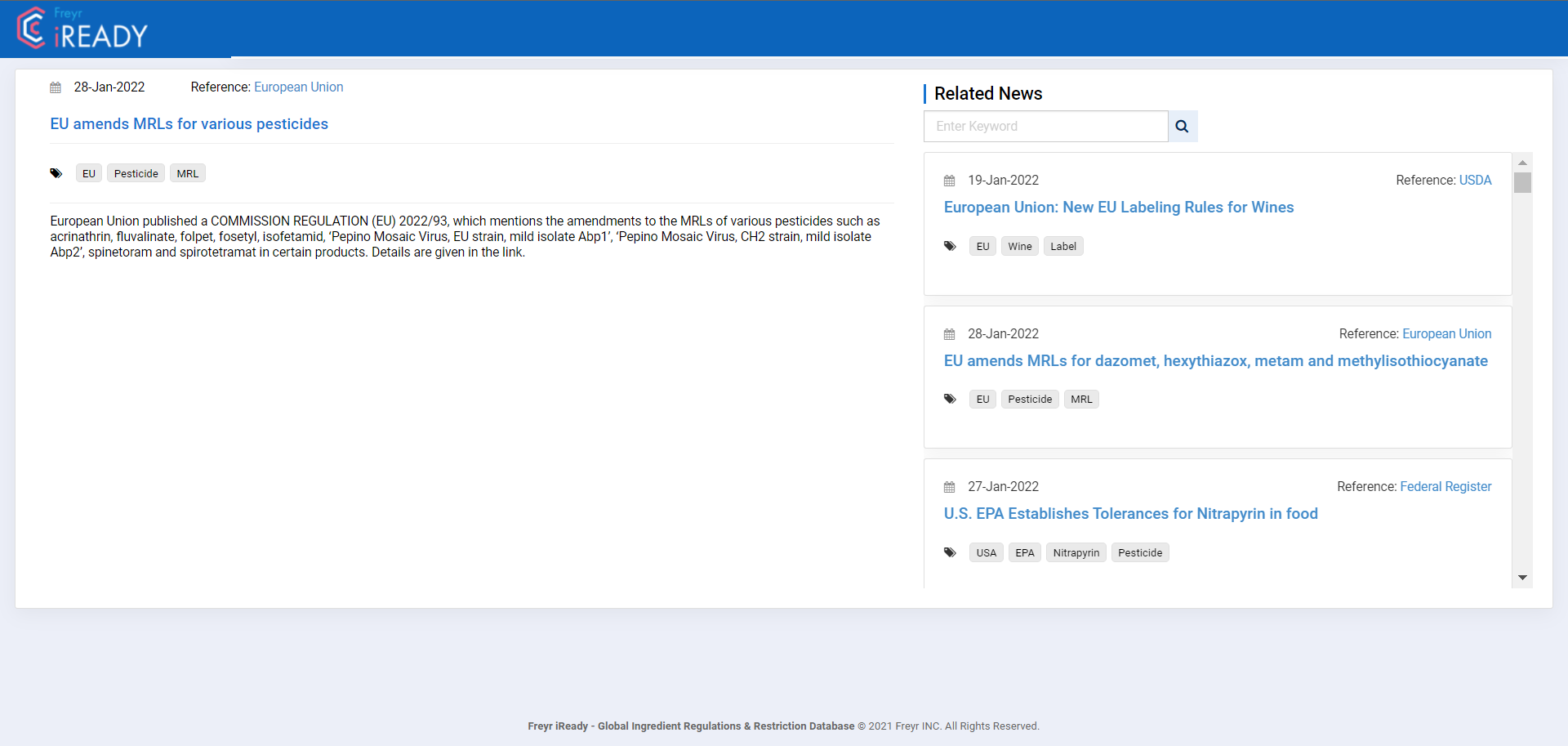
Image 22: On selecting any of the update, tool navigates the user to a new window displaying detail of the update
10. Ingredients & FP Regulations
Ingredients & FP Regulations module maintains regulations/legislations and industry standards for more than 24,000 food ingredients and food supplements by Substance Name, Function, INS/E-Number, Country, and CAS Number across 70 plus regulated markets.
Ingredients & FP Regulations provides the name of flagged ingredients in the Industry at the top. If there are any significant updates with respect to the ingredient, a colored Flag will appear next to the ingredient in the ingredient’s regulation screen.
Blue Flag  Any recent inclusions in approved list or any relaxations in regulations with respect to ingredient will be highlighted with a blue flag.
Red Flag  Any recent prohibitions or restrictions introduced with respect to any ingredient will be highlighted with a red flag.
The ingredients are displayed in a tabular view with column headings: Flag, Ingredient Name, INS/E- Number, CAS No, Functions, Market,/Countries, Other Names (Refer Image 23). Besides each heading, there is Sort icon for the user to sort the ingredients.
The tool provides a search space on the top of the screen, users can search for ingredients either by Ingredient Name, CAS No, Functions and Other Names (Refer to Image 23).
Image 23: List View of Ingredients
Once the user clicks on the Ingredient from the list, the system navigates to a window with all the available filter options to modify the search criteria and look for the Ingredient of choice based on Ingredient Type , Category, Country or Ingredient Name/INS/E-number/CAS No./Functions/Other Names. (Refer to Image 24).
The user will find all the available Category /Ingredient Type/ Country based regulations for the searched ingredient. For example: for Titanium Dioxide, there are 20 different records based on the Category and Ingredient type.
Upon selecting any record of desired category, the tool navigates the user to the ingredient’s regulations page. On this page, on the left-hand side, the tool displays Market, Regulatory Status and Region of the ingredient. (Refer to Image 25)
On the right-hand side of the screen, the tool displays by-default the details of all markets for which the regulations are available in that particular category.
User can select/click on the country name from the left hand side to narrow down the results for one country. On selecting any of the Market from the list, the tool will display the details of the Market for the selected ingredient as listed below on the right-hand side of the screen
- Sub-Category
- Sub-Category Name
- Country
- Country Specified Category
- Regulatory Status
- Technical Functions
- Important Notes
- Restrictions or Exceptions
- Usage Limits
- MRLs
- Guidelines Status
- RDA
- ADI
- Country Specified Numbering
- Standard Specifications
- Additional Information
- Microbiological Standards
- Allergen Declaration
- Contaminants Regulation
- Mandatory Labelling
- Label Claim Guidelines
- Health Benefits
- Data Source
- Genetically Modified Info
The user can view the details of all the markets pertaining to the ingredient one by one from the list (Refer to Image 25)
On selecting the Map View option provided at the top right-hand corner, the tool will display the world map with markets highlighted in different colors. On the right side of the map, the legend is displayed illustrating the Regulatory status of the ingredient in each market on the map for the selected sub-category (Refer to Image 26)
Image 26: Map View of the Ingredient with Legend on the right side
On the right side corner of the page, the tool displays a button named Ingredient Details (Refer to Image 27).
Image 27: Ingredient Details Button
On clicking this, the tool showcases the ingredient Details window displaying Ingredient Name, CAS No., INS/E Number, Other names.(Refer to Image 28).
Image 28: On clicking the Ingredient details button, these results are displayed as a pop-up.
On the right side corner of the page, the tool displays another button named Flag Details (Refer to Image 27). (Flag Details button is displayed only for flagged ingredients)
Image 29: Flag details button
On clicking on flag details button the tool showcases the Flag Details Pop-up with Severity, Title, Description, Reference link, Last modified date and flag history details (Refer to Image 30).
Image 30: On clicking the Flag Details button, these results are displayed as a pop-up.
11. Food Contact Materials
Food Contact Materials Tab allows the user to search for the regulations pertaining to any chemical/food contact material by specifying the chemical name or CAS number in the search box or by using the country filter.
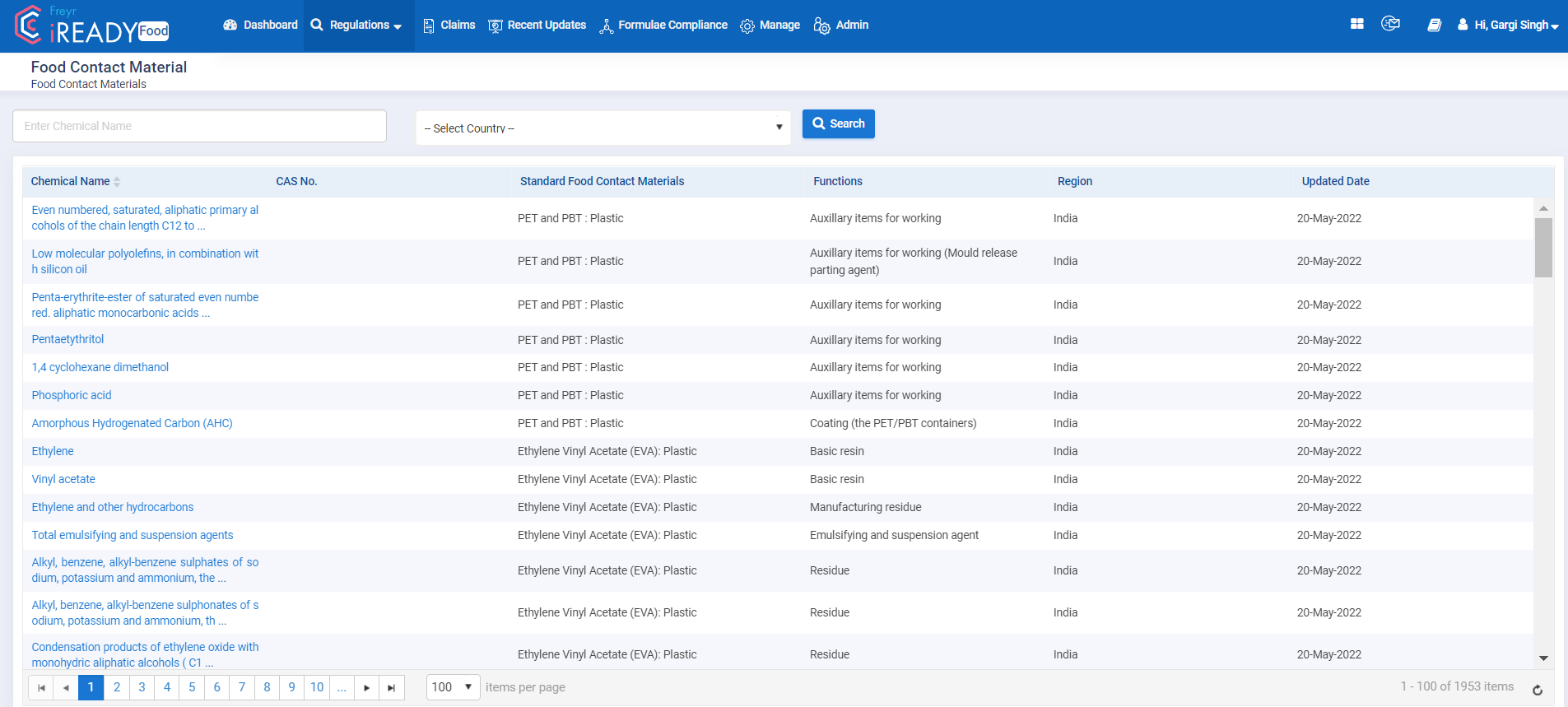
Image 31: Food Contact Materials Main View
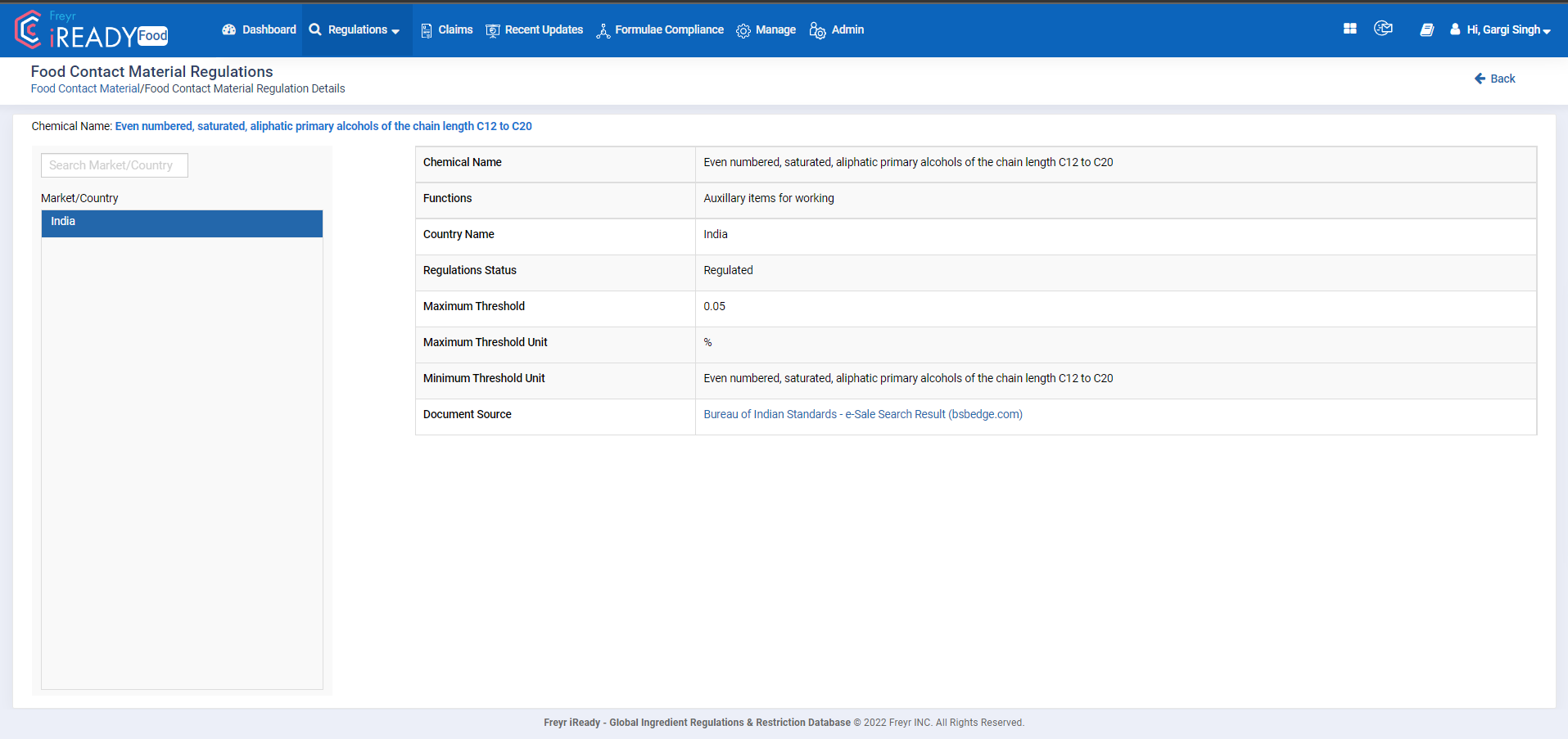
Image 32: Food Contact Materials Detail View
12. Claims
Claims tab allows the user to search for the regulations and prerequisite conditions to be met in a particular market/country that the user is targeting. By clicking on the claim name, the user will be navigated to the subsequent page with all the details about the claim, for example: Status, Conditions for Claim, Synonyms, Claim Statement, Food or property of food, Dietary Supplement, Data Source, Note, Labelling, RDA.
The user can also search for a particular claim by mentioning the name of the claim or name of the nutritional ingredient and the search can be filtered as per the target market/country.
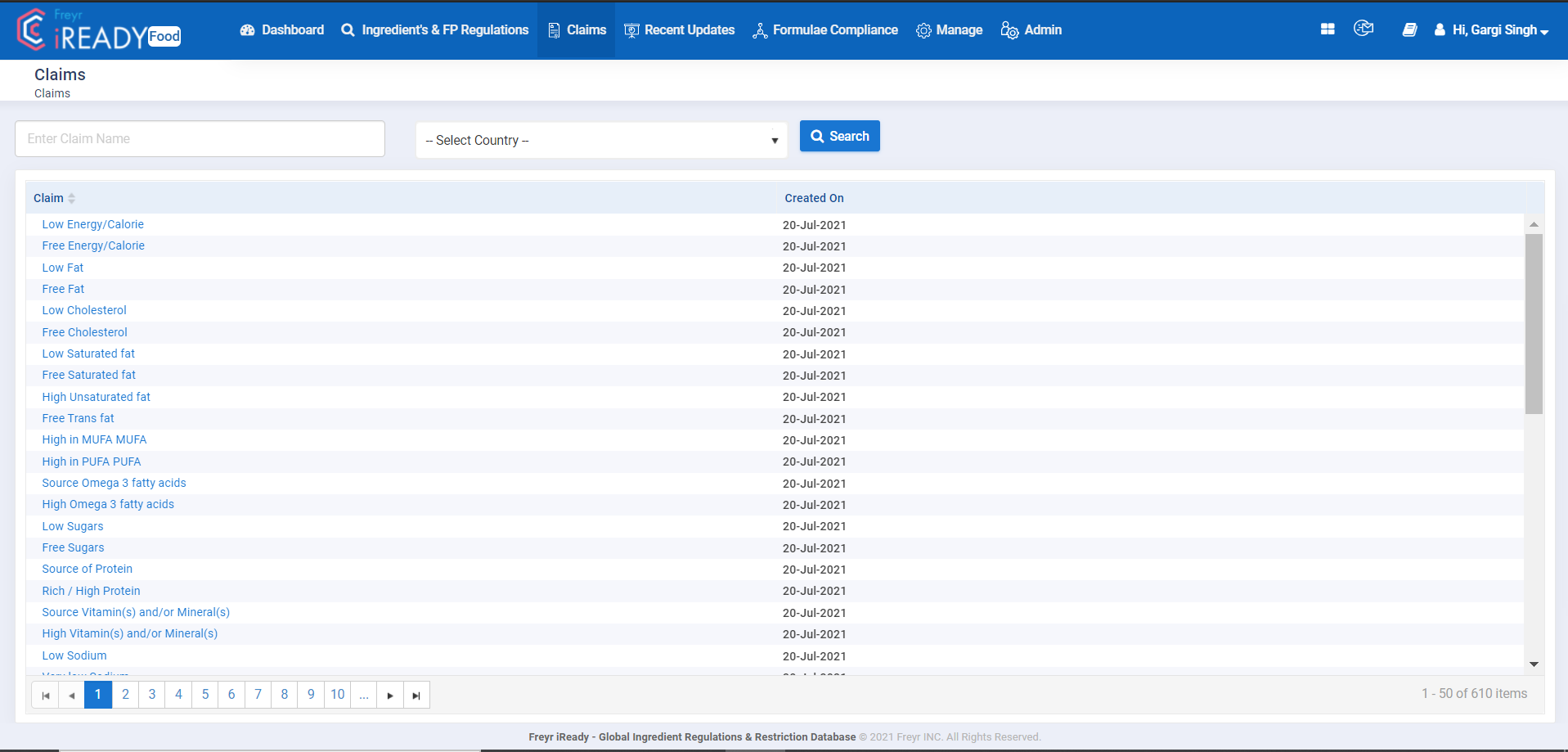
Image 33: On clicking the Name of the Claim, the results are displayed in a new page.
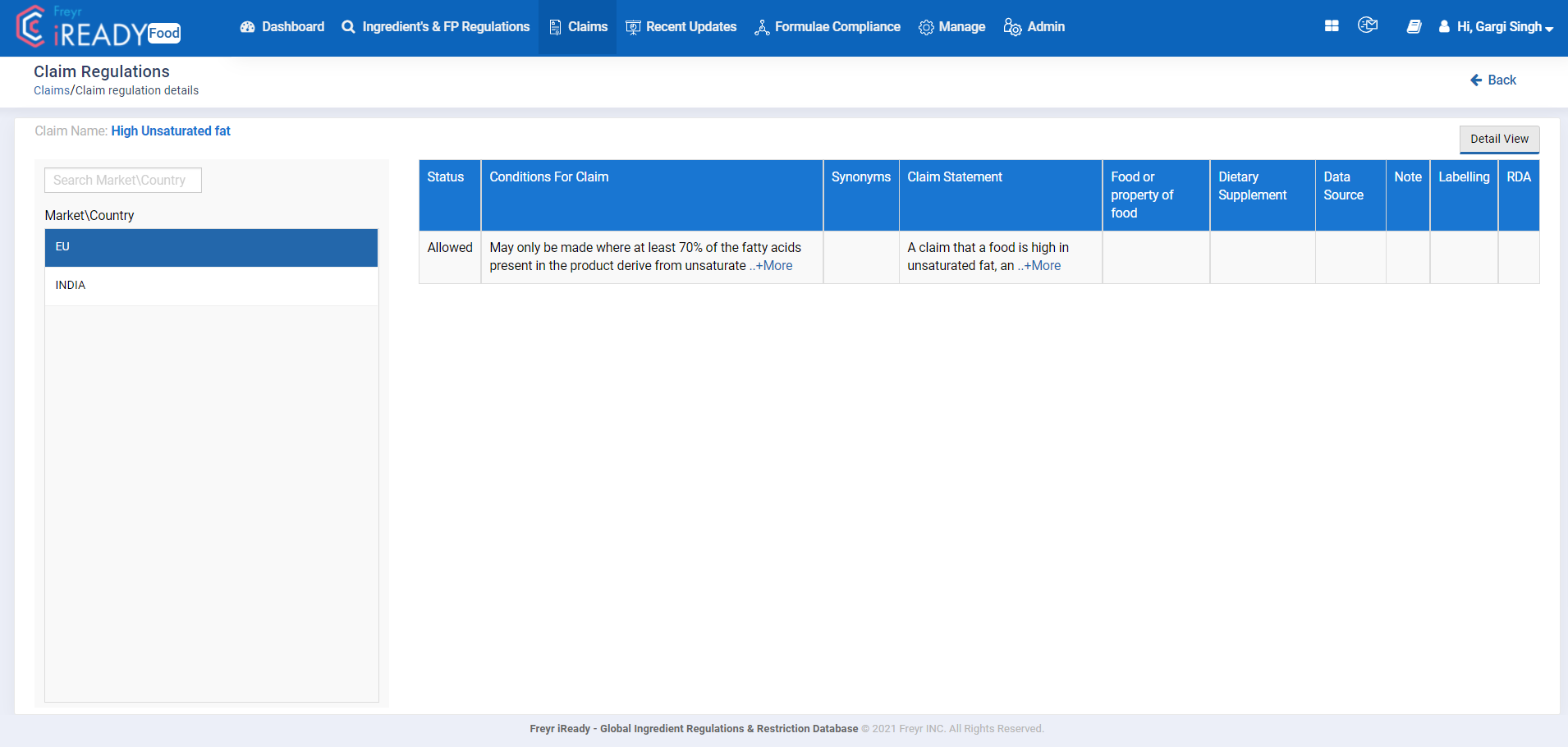
Image 34: The results after clicking on the name of the claim
13.Recent Updates
Recent updates display all the recently updated regulations of the ingredients with dates, in descending order.
The updates are displayed in tabular view with column headings: Ingredient Name, INS/E Number CAS No, Ingredient Type, Category, Subcategory, Country, Regulatory Status Last Review Date, No of Impacted Formulae (Refer to Image 35). The users can also search for updates by providing Ingredient Name/CAS No/INS E Number, Category, Subcategory and Date Range (Refer to Image 35).
On selecting any of the ingredient update, user will be directed to a detail view of the update (Refer to Image 36)
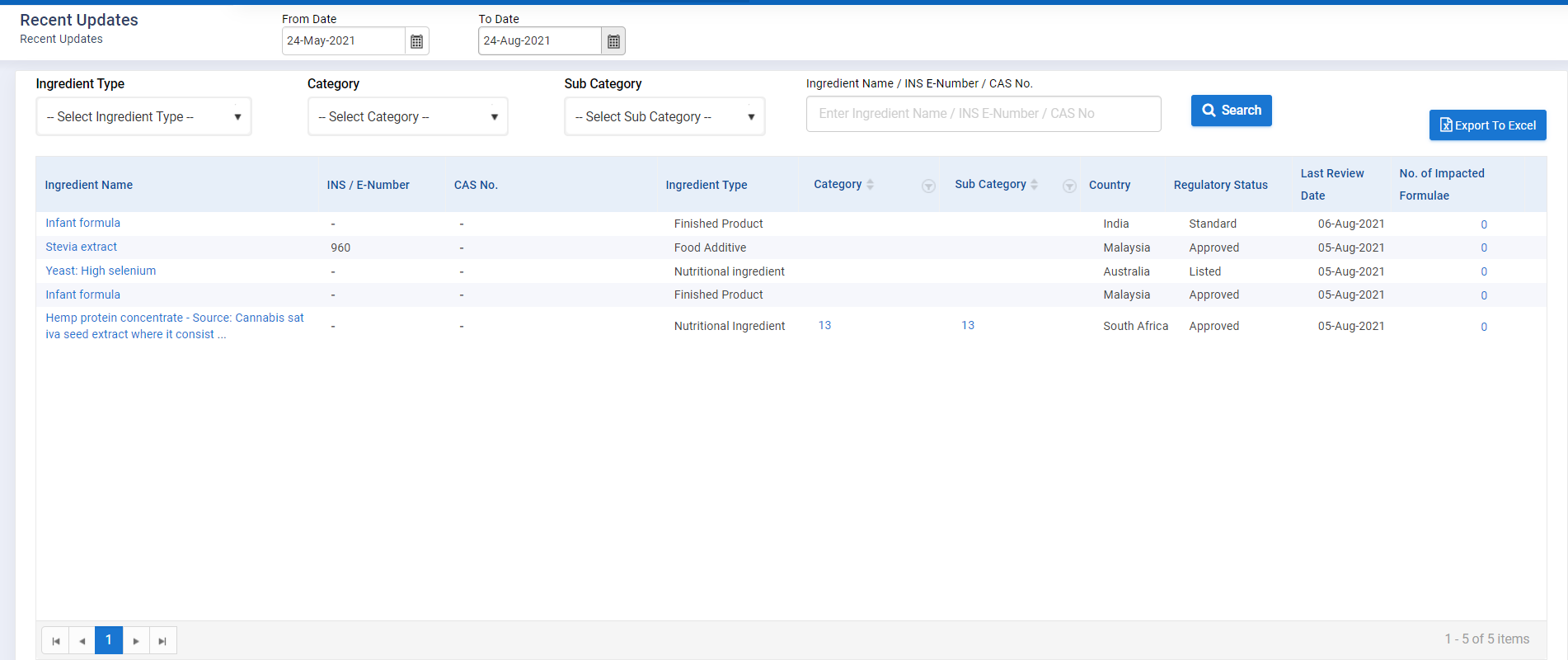
Image 35: Recent updates with Search Option for user to search for updates along with Date Range option

Image 36: Detail view of the Update for an Ingredient
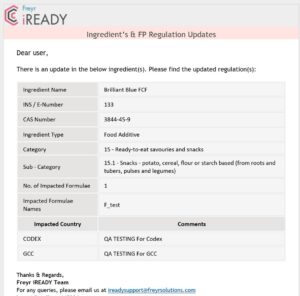
You will be notified via email if there are any regulatory changes to the ingredients you have used in any of your formula(e). (Refer below)
14. Formula Compliance
Freyr iREADY offers users the ability to create formulae based on the ingredient functions.
14.1 Formulae
This shows the list of created formulae in the user account wherein the user can search for a particular formula with the help of the formula name or formula description. This also allows the user to create new formulae using the Add Formula button available on the extreme right of the window.
All the user created formulae can also be exported in an excel workbook with all the exact data, input by the user during the time of formula creation.
The user can select multiple ingredients to create formulae, add concentrations and functions, and view the acceptability of the ingredient combination across global markets. Freyr iREADY includes all identified functions of each ingredient, hence, allowing the user to select functions with ease while building product formulae.
In formula, user can create a formula by clicking on  icon then provide Formula
Name, Description and click on  icon to add ingredients. Once the user clicks on “+Ingredients”, the tool opens a small window where the user must select ingredient type from the drop down and can select ingredients by name or CAS numbers or INS/E Numbers. Once the ingredients are added to the formulation column, user can view the recommended functions for each ingredient by selecting the information
  icon. User can also add their own functions in the field provided. In the percentage field, the user can provide the percentage pertaining to each ingredient. The tool will add the percentage of all ingredients and display on the top of formulation column. If the total sum of the percentage adds to 100, it will be displayed in green color and if it is above or below 100 it will be displayed in Red. Once all the fields are updated user can click on
  button and upon clicking on
  button the formula created will be saved.
Once the formula is created, the tool displays the formula in sample formula tab with the last updated/date created, along with actionable options as listed below
- Edit

icon allows the user to edit the formula created - Inactive

icon allows the user to deactivate the formula - Clone Formula

icon allows the user to create a replica of the same formula in order to tweak it a bit for some other product. - View

icon allows the user to view the Formula details - Move to Sample Formula

icon allows the user to move the created formula to the sample formula tab for his future reference (User should make sure maximum sample formula count allowed is 5). - Compliance allows the user to look for Formulae Regulation Compliance for any country. On selecting any country from the drop-down, the tool will display the Regulatory status of each ingredient
- Map View displays the Global Formulation Compliance for the ingredients used in the sample formula at various markets
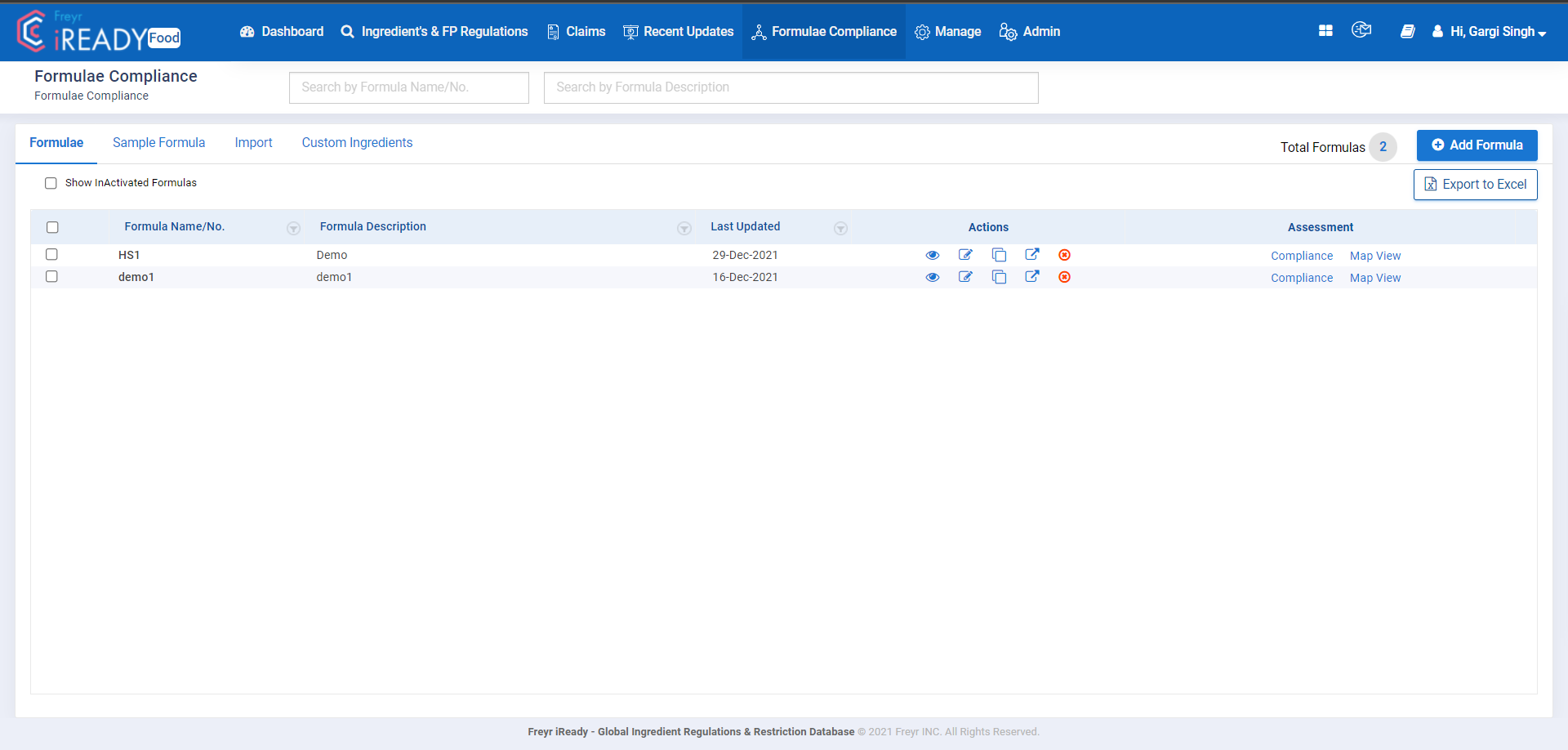
Image 37: Formulae Tab explained
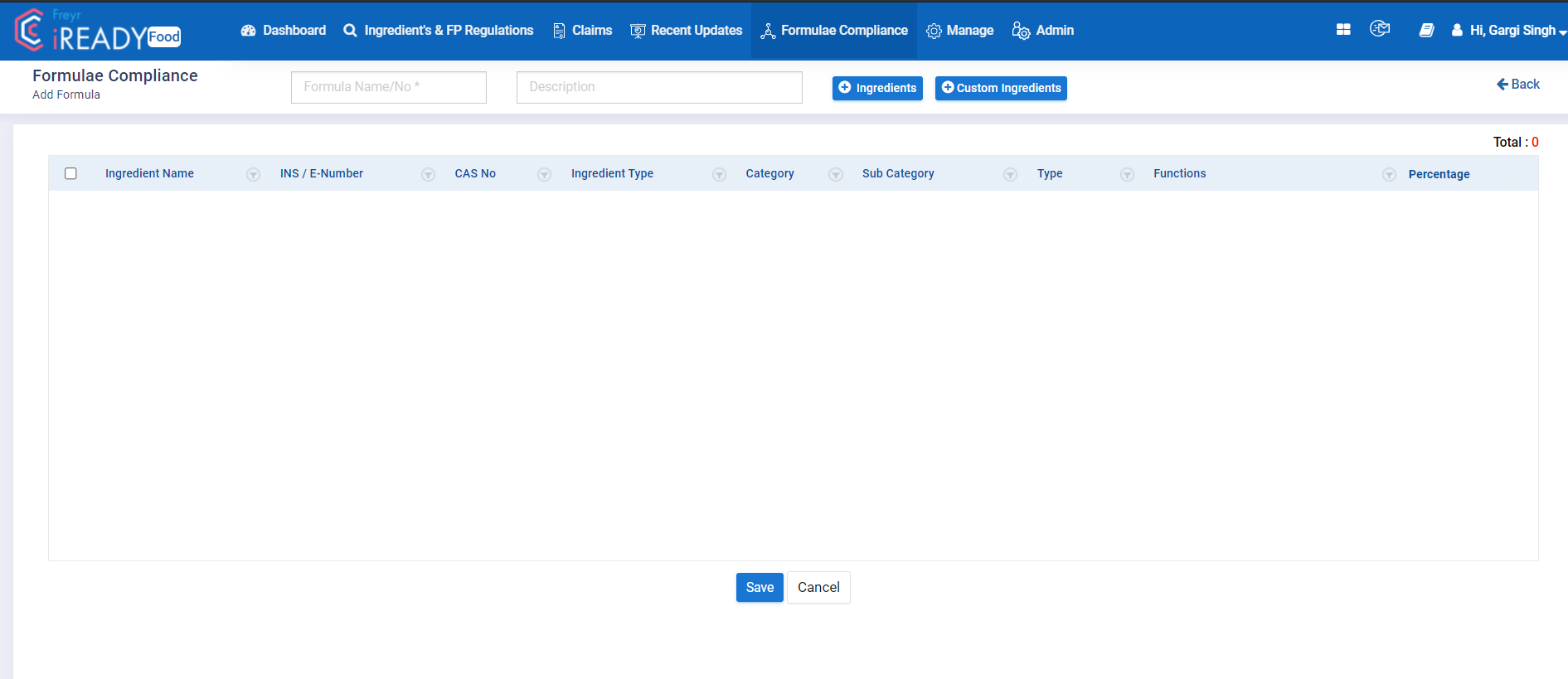
Image 38: On clicking the Add Formula button, the user is taken to this page where a proper name and description can be provided for the formula which the user is going to create.
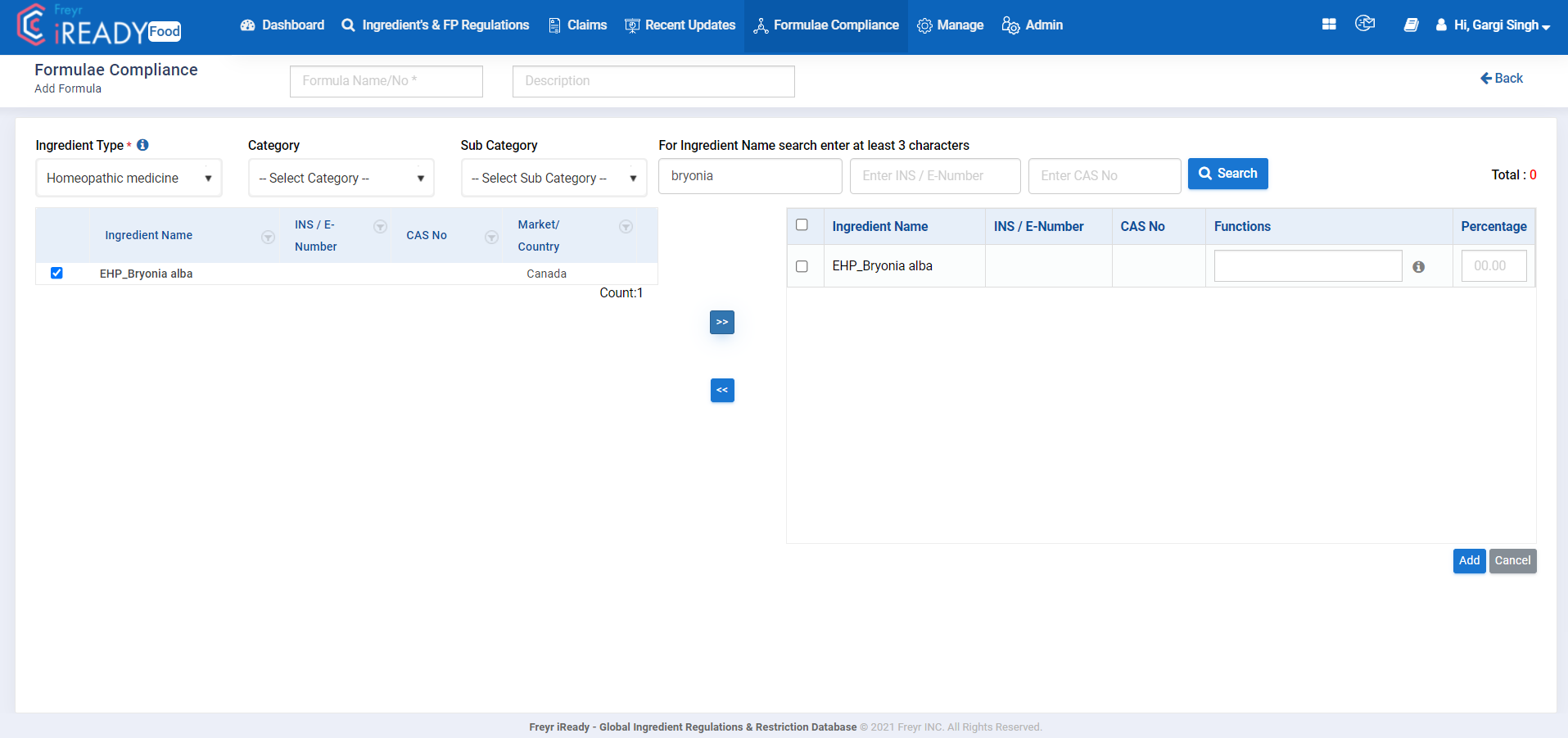
Image 39: On clicking the Add Ingredients button, the user is taken to this page where the ingredients can be searched and added to the formula
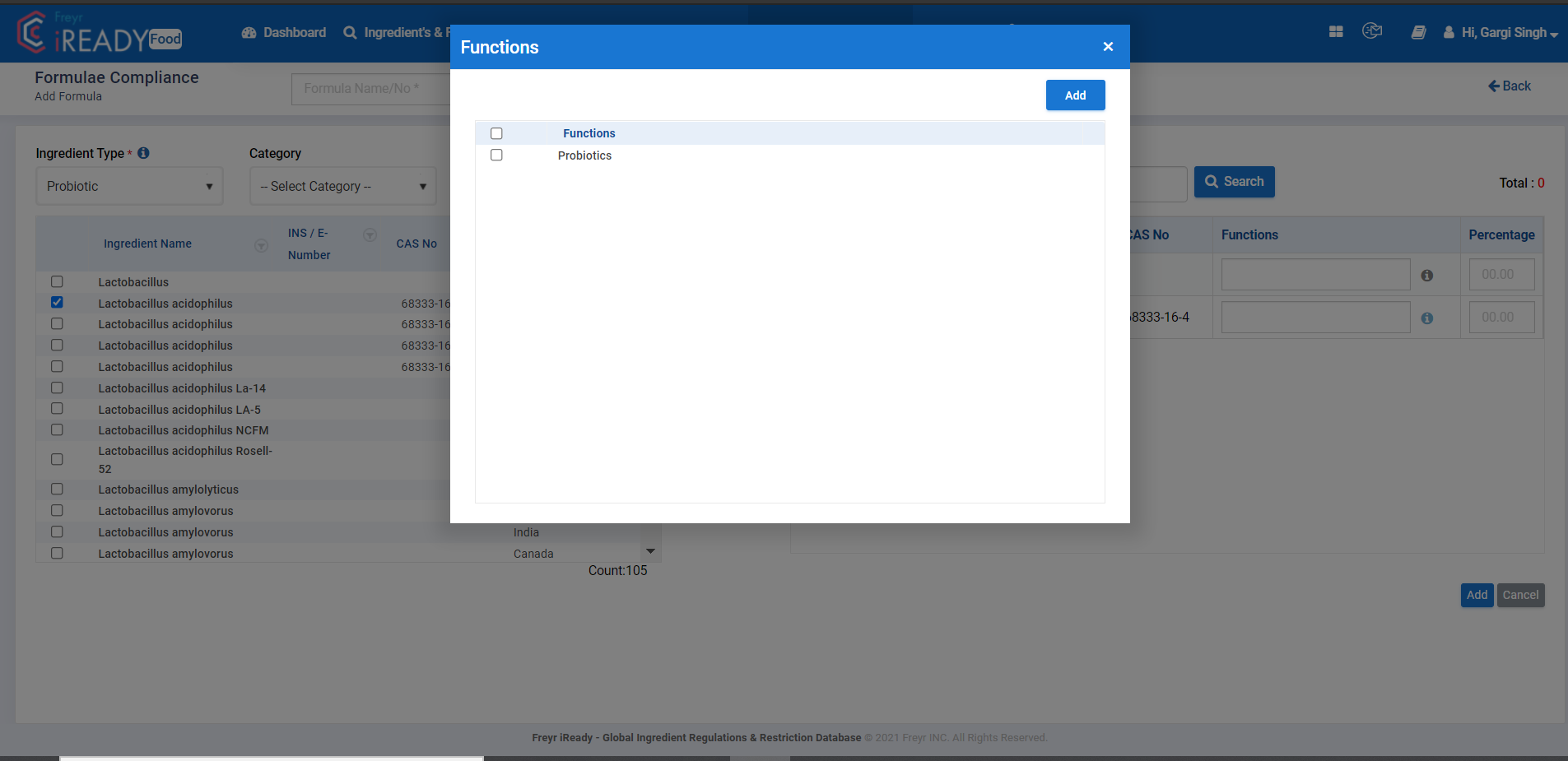
Image 40: On clicking the information icon , a pop up window appears with all the function details of the ingredient from where the user can choose the functions.
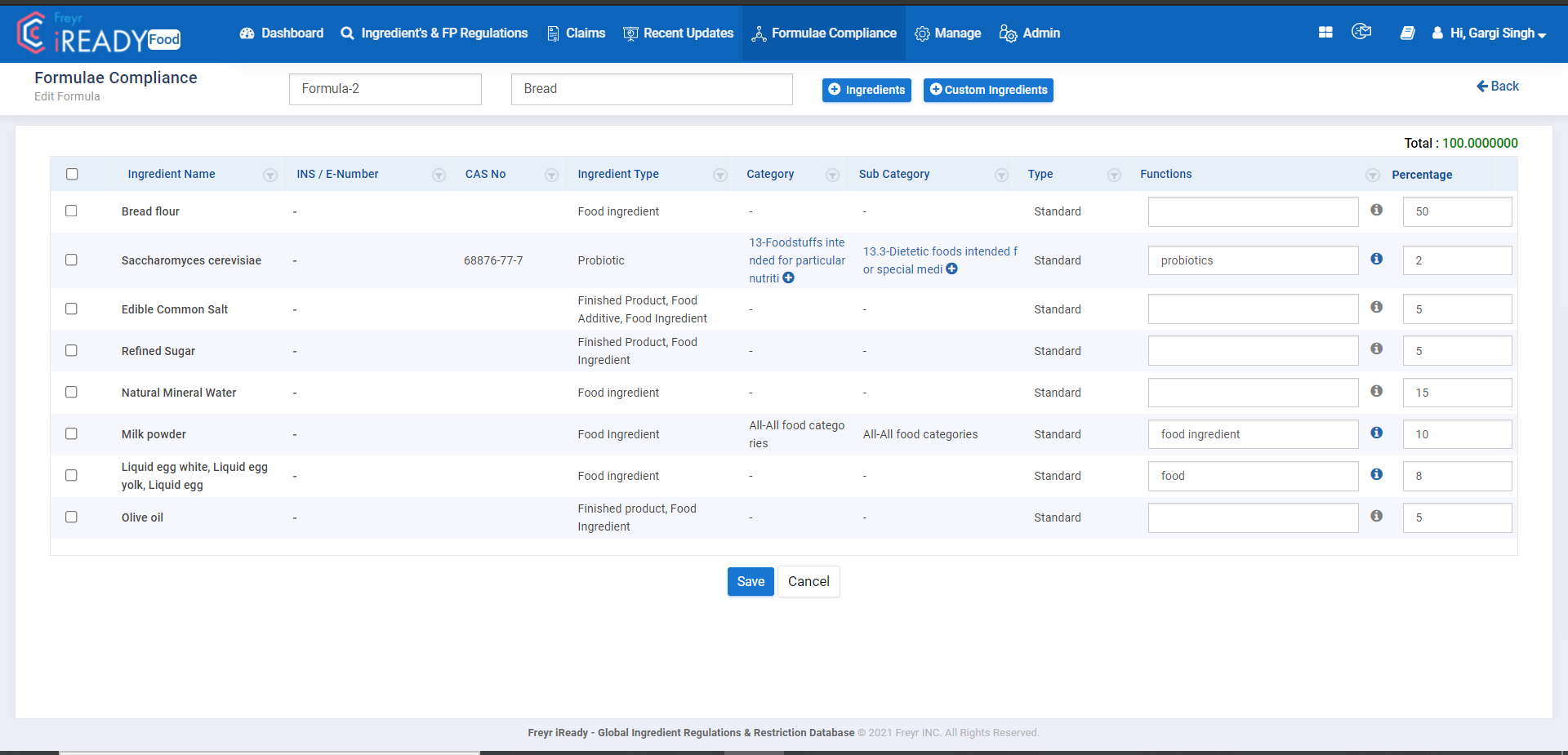
Image 41: The ingredients after being added to the formula and their corresponding details, like functions, their percentage in the formula etc.
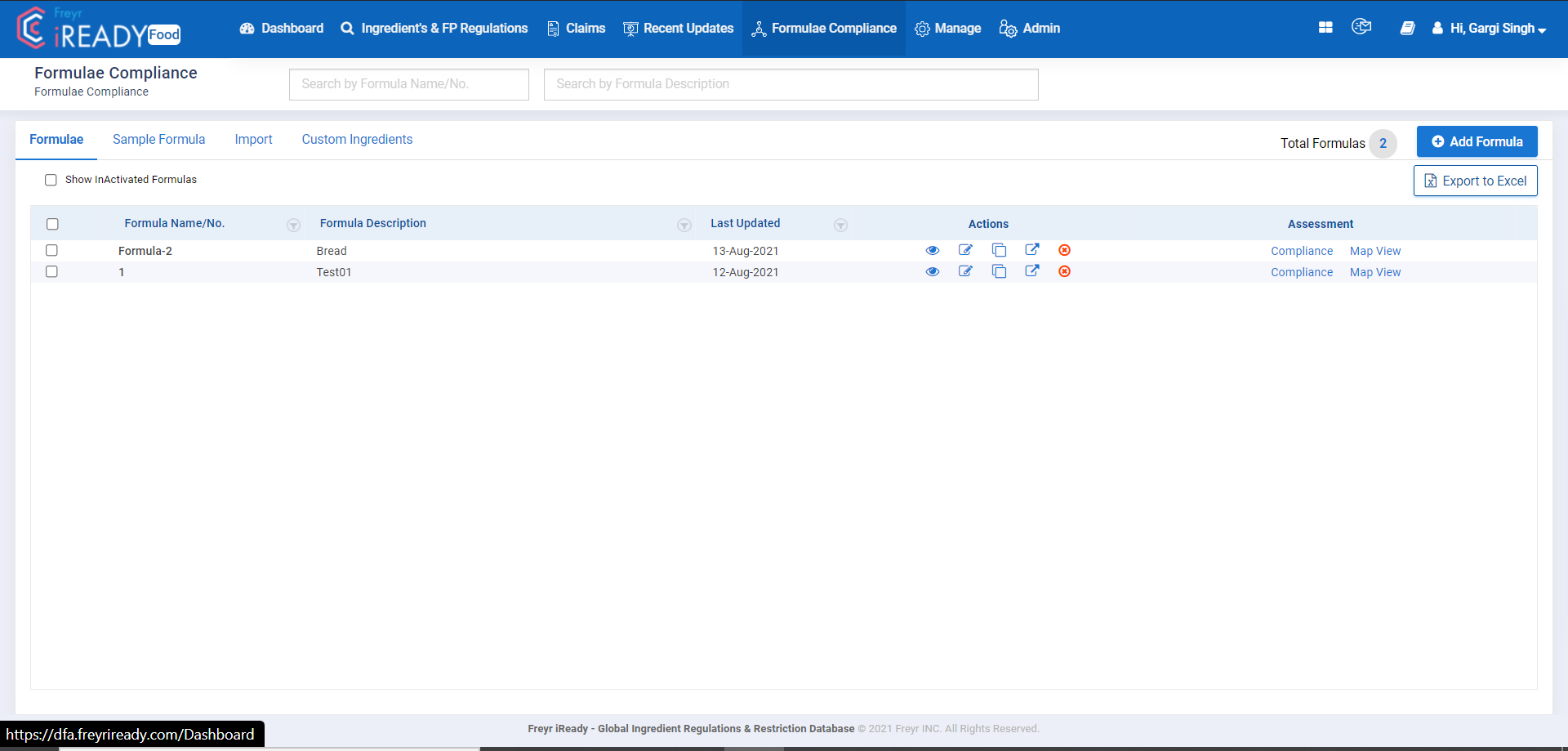
Image 42: After the successful creation of the formula, a new record is created with the last updated column and the different action items that can be used to view/change/move/clone/inactivate the formula
14.2 Sample Formula
The user can select multiple ingredients to create formulae, add concentrations and functions, and view the acceptability of the ingredient combination across global markets. Freyr iREADY includes all identified functions of each ingredient, hence, allowing the user to select functions with ease while building product formulae.
In Sample formula, user can create a formula by clicking on  icon then provide Formula
Name, Description and click on  icon to add ingredients. Once the user clicks on “+Ingredients”, the tool opens a small window where the user can select ingredients by name or CAS numbers or INS/E Numbers. The selected list of ingredients can be dragged and dropped to the Formulation column on the right side or user can also use the move to icons
  to add and remove
 ingredients by selecting the check box provided beside the ingredient. Once the ingredients are added to the formulation column, user can view the recommended functions for each ingredient by selecting the information
  icon. User can also add their own functions in the field provided. In the percentage field, the user can provide the percentage pertaining to each ingredient. The tool will add the percentage of all ingredients and display on the top of formulation column. If the total sum of the percentage adds to 100, it will be displayed in green color and if it is above or below 100 it will be displayed in Red. Once all the fields are updated user can click on
  button and upon clicking on
  button the formula created will be saved.
Once the Sample formula is created, the tool displays the formula in sample formula tab with the last updated/date created, along with actionable options as listed below
- Edit

icon allows the user to edit the formula created - Inactive

icon allows the user to deactivate the formula - Clone Formula

icon allows the user to create a replica of the same formula in order to tweak it a bit for some other product. - View

icon allows the user to view the Formula details - Move to Formulae

icon allows the user to move the created draft of the formula to the formulae tab for his future reference. - Compliance allows the user to look for Formulae Regulation Compliance for any country. On selecting any country from the drop-down, the tool will display the Regulatory status of each ingredient
- Map View displays the Global Formulation Compliance for the ingredients used in the sample formula at various markets
A single user can create up to 5 formulae in the iREADY application.
The process of creating sample formula is illustrated in Images in below.
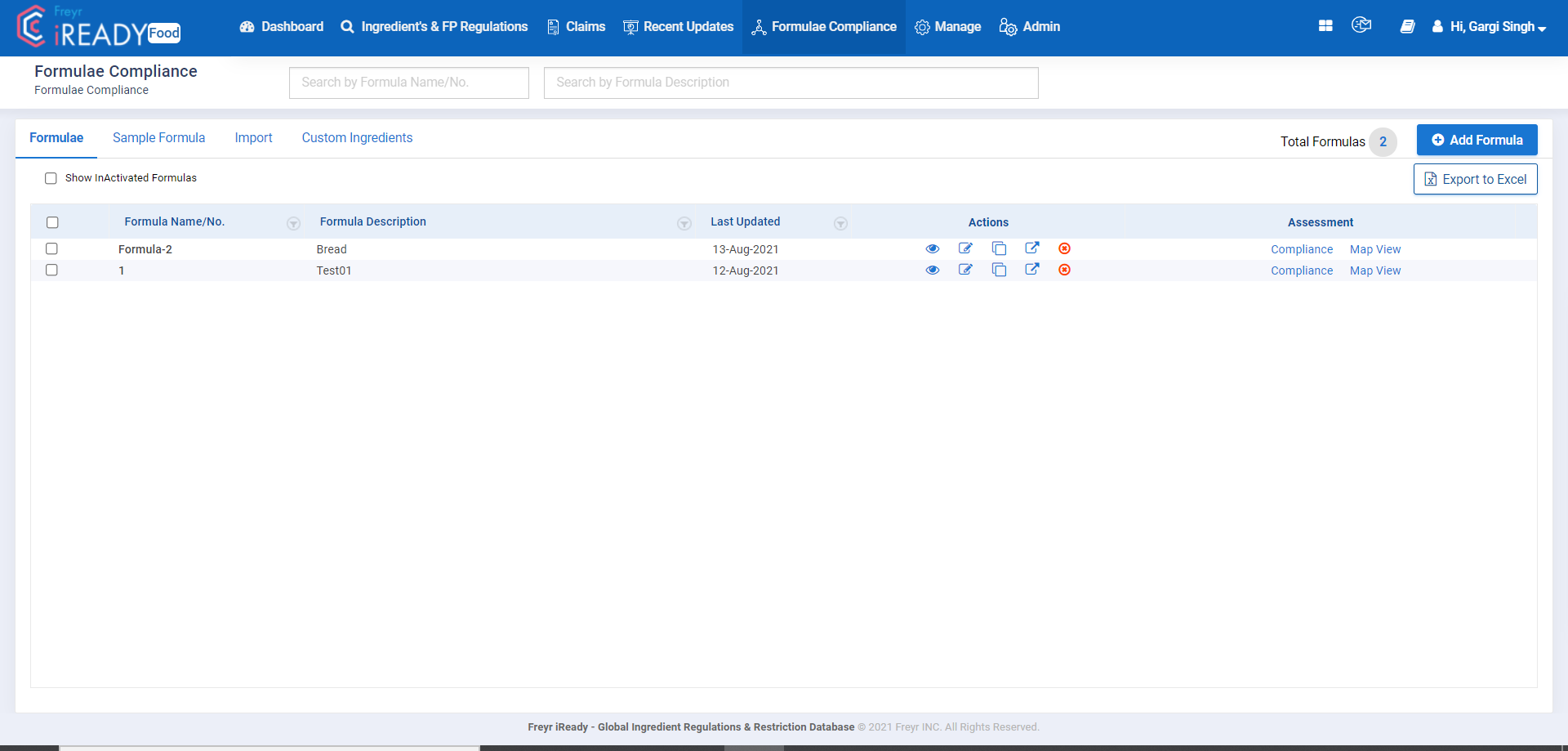
Image 43: Detail view of the Formula Compliance tab
14.3 Import
This module saves a lot of manual effort by allowing the user to create multiple formulae simultaneously, by filling in the respective columns of the pre-defined import template that can be downloaded and edited. After having saved this sheet with all the formulae that are to be created, the same file can be input into the system and the data will be imported into the tool. Hence, the formulae will be created successfully.
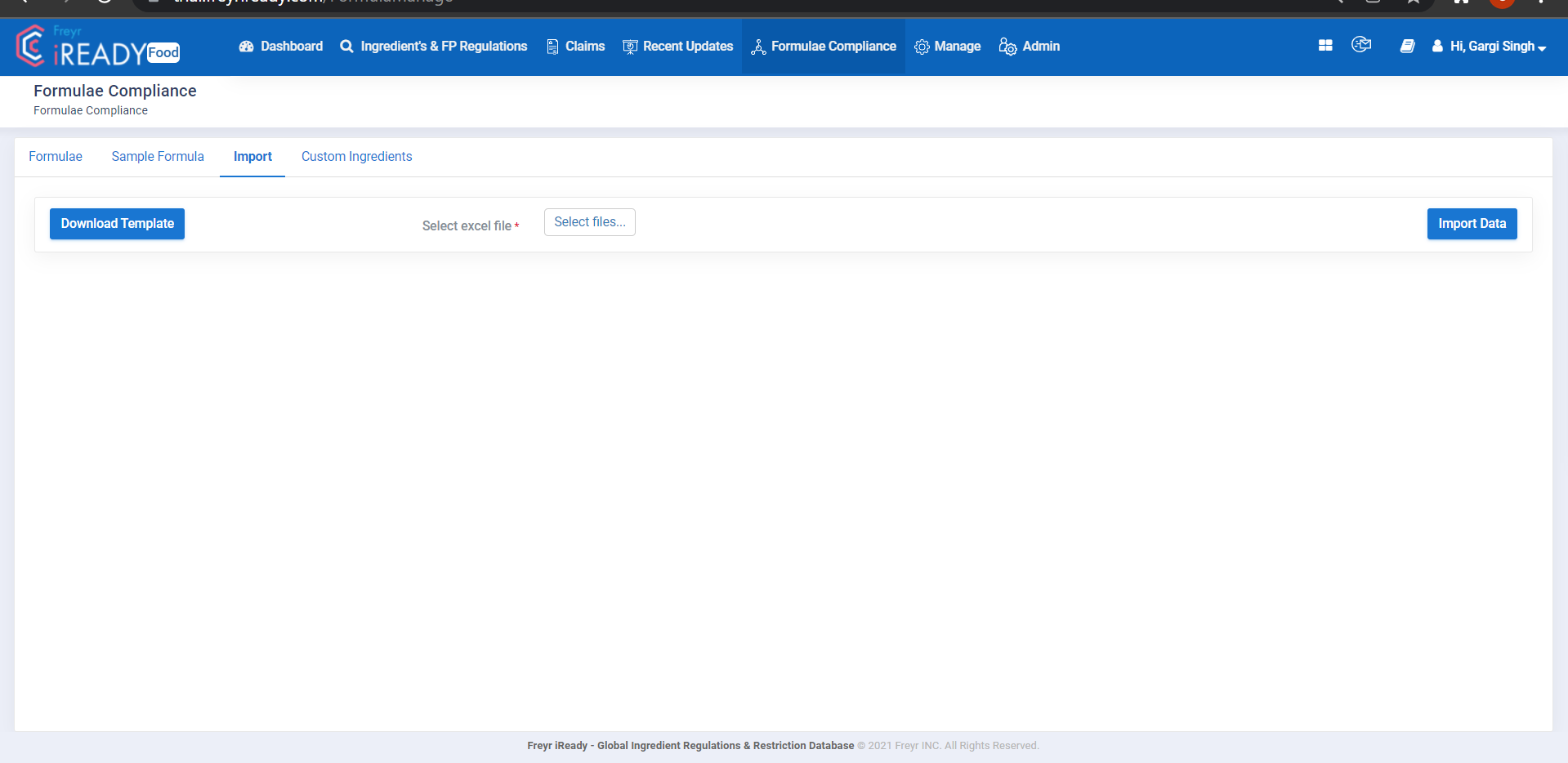
Image 44: Import Module explained
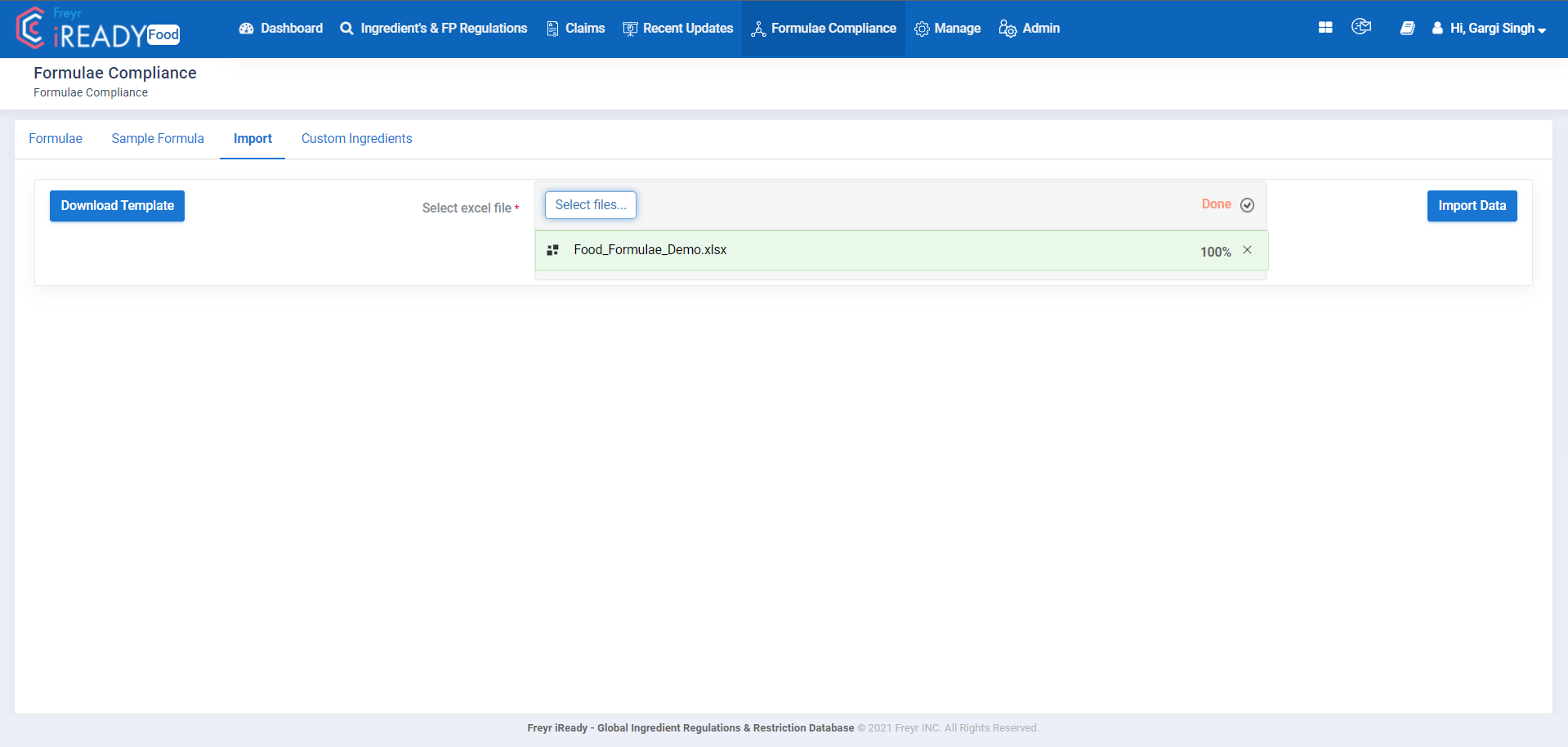
Image 45: Uploading the excel file with formulae data
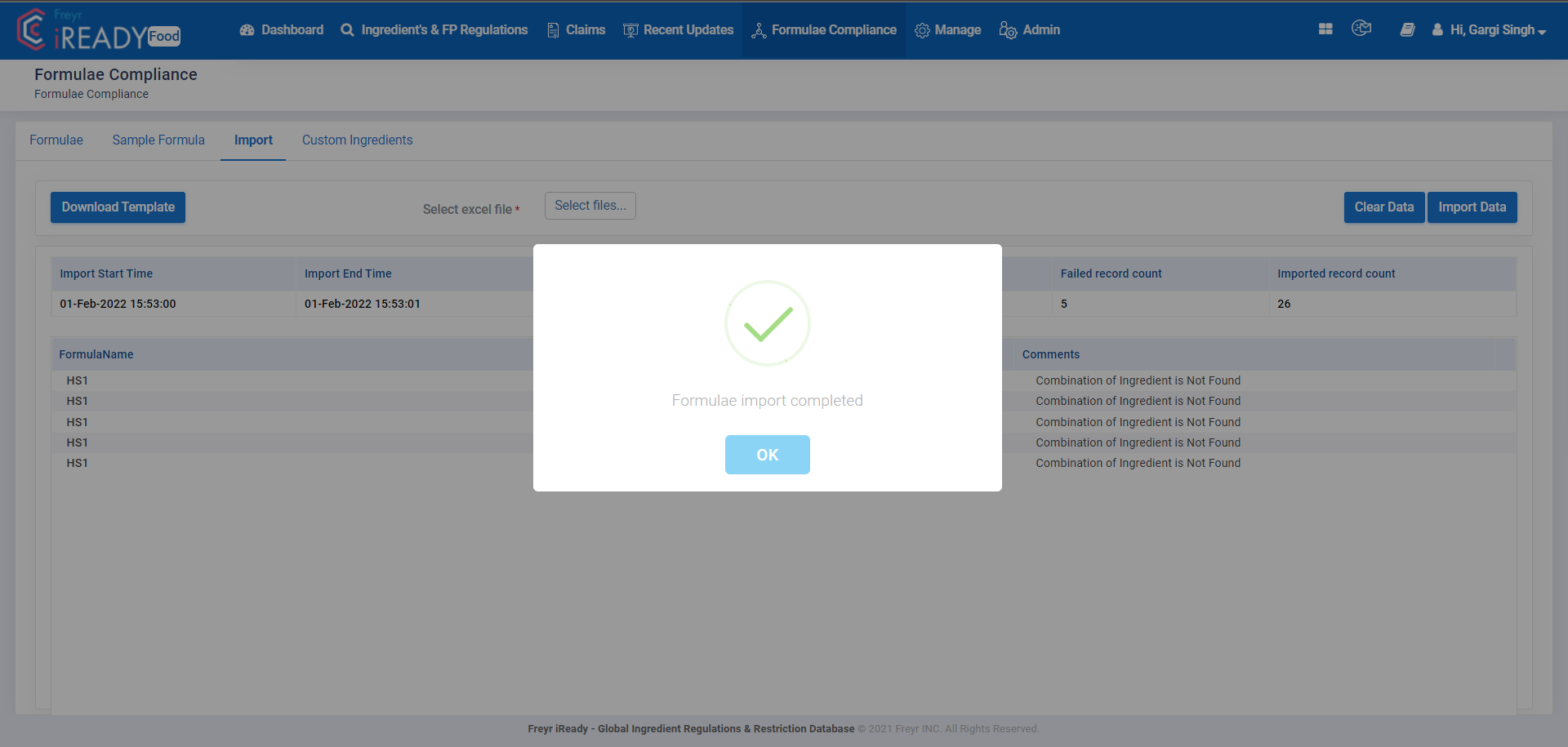
Image 46: Once the Import Data button is clicked, the system compares the data in the excel if it matches with the existing ingredients records in the database. If there are some issues, then the same is conveyed in the form of appropriate error messages.
14.4 Custom Ingredients
Custom Ingredients allows the user to add new ingredients to the formulae. By new ingredients we mean the ingredients which are not listed in the iREADY Food existing database. These ingredients can then be added to the Formulae that the user wishes to create.
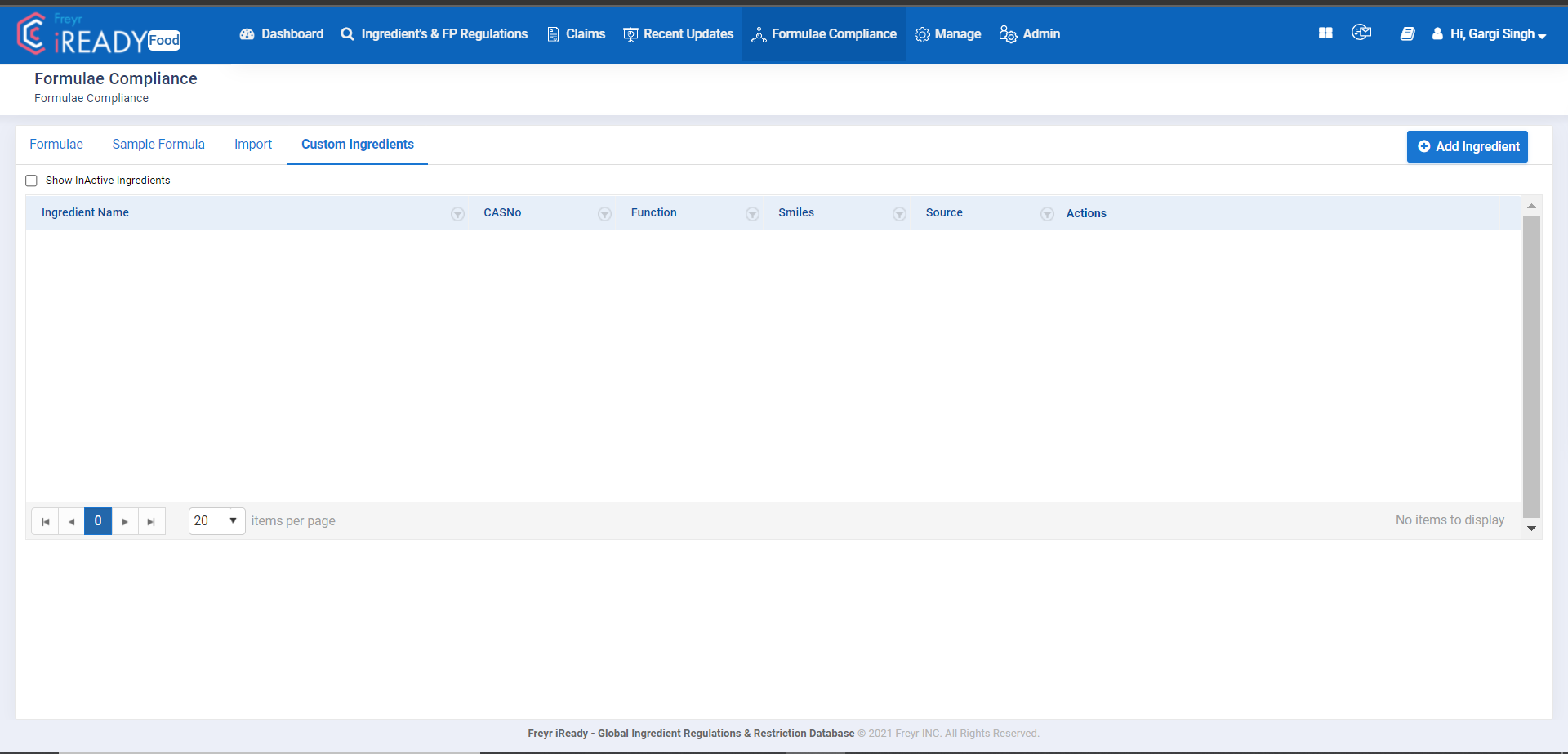
Image 47: Custom Ingredient module explained
We really hope this user guide of Freyr iREADY is self-explanatory in all the parts. If you have any questions on any given section, please contact us at ireadysupport@freyrsolutions.com.
We will always be happy to assist you.